

Licenses & plans
A license is what unlocks the Esment Mac app: you choose a plan, and the license that comes with it turns the app on. This guide explains the plans, how to activate the app, and how to manage everything from your account.
A license, in plain terms
Think of your license as the key that turns the app on. It’s tied to your Esment account, works on your Mac, and can be moved between your own computers. You activate it once, and the app keeps itself valid in the background from then on.
A license unlocks the software. It does not send your memories anywhere — with the Mac app, your memory always stays on your own computer.
Choosing a plan
Plans differ mainly in how much memory they include and which extra features they unlock. The current plans and prices are always listed on the pricing page — that’s the source of truth, so we won’t repeat prices here.
The general shape
- Starter — for one person getting started with a personal memory.
- Pro — more memory and headroom for everyday, heavier use.
- Team — everything in Pro, plus room for multiple separate memory spaces.
- Enterprise — custom plans for organisations with security and compliance needs.
The pricing page shows live plans, prices, and exactly what each one includes. You can cancel a plan at any time.
What each plan unlocks
Every plan runs the full local memory engine, connects any assistant, and lets you capture, search, pin and forget memories. The differences are how much you can store and a few extra features. Here’s where the ones that vary by plan kick in — the pricing page stays the final word.
How much you can store
- Starter — up to about 10,000 memories, one space.
- Pro — up to about 50,000 memories, one space.
- Team — up to about 500,000 memories, and multiple separate spaces.
- Enterprise — unlimited memories and spaces.
Features that depend on your plan
- Memory Blocks — the always-on notes (Soul, Facts, Persona, Project). Pro and up.
- Knowledge Graph — the visual map of how your memories connect. Pro and up.
- Multiple spaces — keep separate clients or projects apart, with the Profiles view. Team and up.
- Drop-in model gateway & conversation import — advanced ways to feed and use your memory. Team and up.
- Observational memory & webhooks — passive capture and integrations. Enterprise.
Capturing memories (including Quick Capture), connecting assistants, search, pinning, export and the built-in assistant are available on all plans. The list above is only the parts that scale up with higher tiers.
Activate & manage
Activating means telling the app which license to use. You only do it once per computer.
Activating the app
During first-launch setup
On the License step of the setup wizard, paste your license id and click Activate.
Any time, from Settings
- 1Open Esment from the menu bar and go to Settings.
- 2Find the License section and click Manage / activate.
- 3Paste your license id and confirm. The status turns to Active when it’s done.
Sign in at esment.notas.ai/account. Each license there has an id you can copy, plus a download of the license file if a client ever asks for one.
Your account page
Everything about your licenses lives on your account page at esment.notas.ai/account. Sign in with your Esment account to see it.
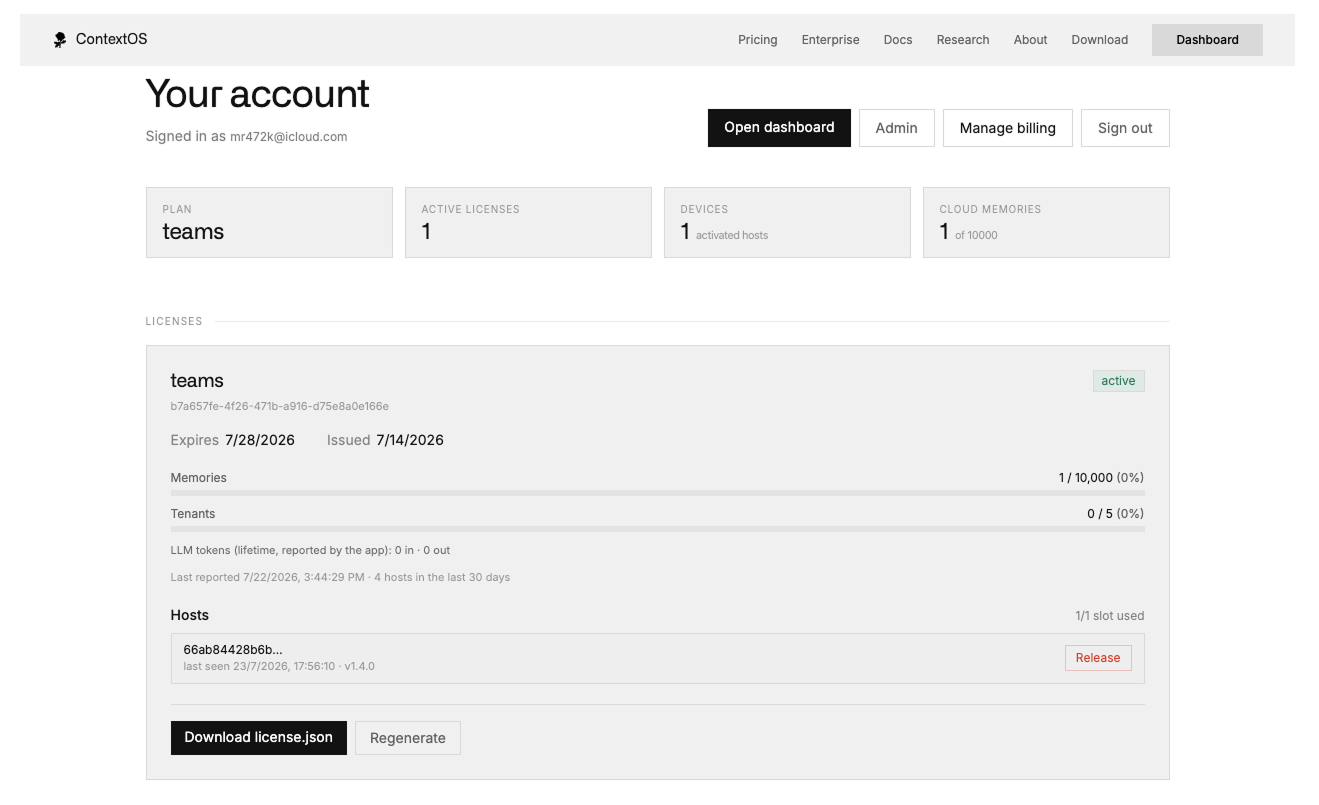
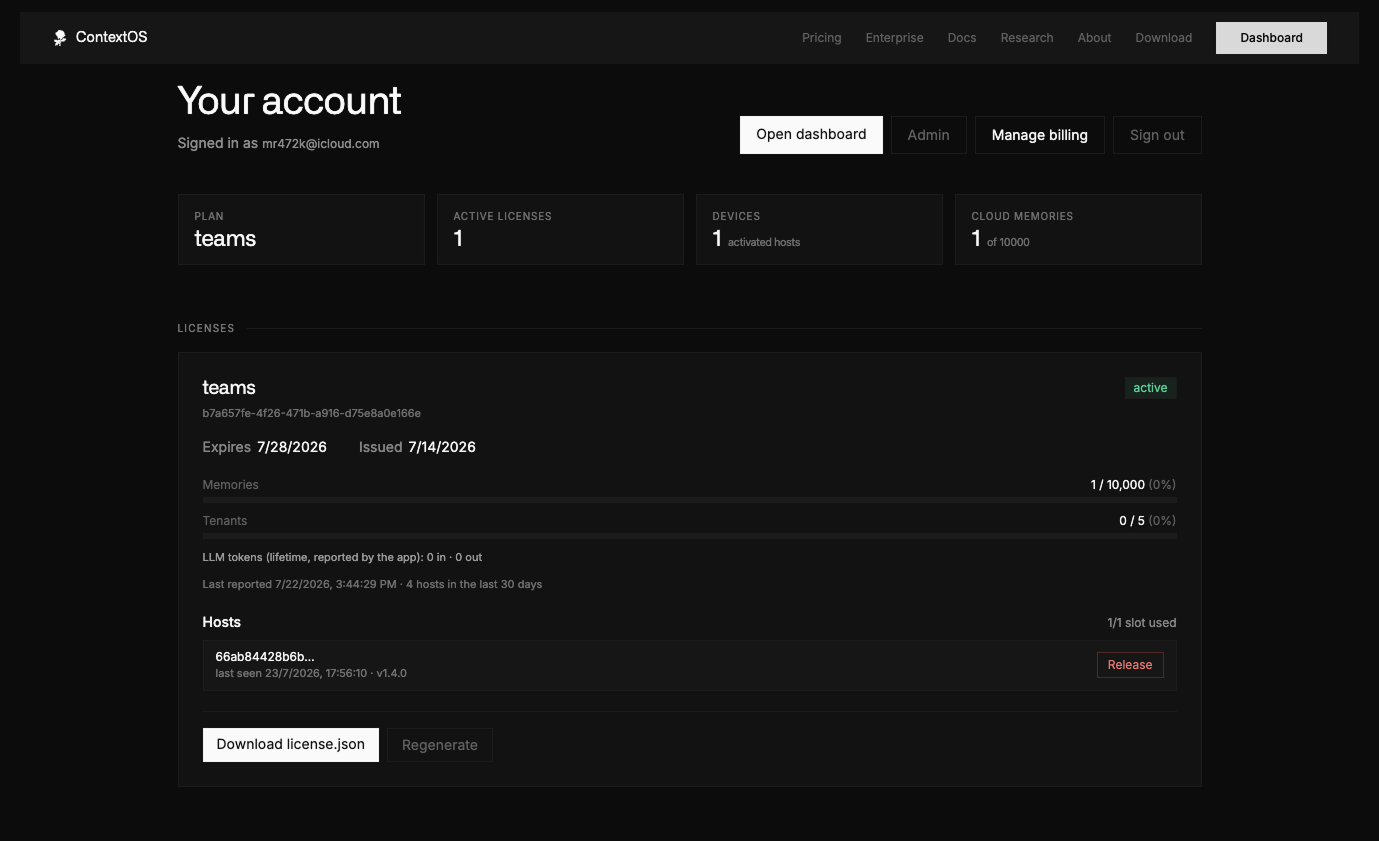
What you’ll find there
- Your plan and status — which plan you’re on and when it renews or expires.
- Usage — how much of your memory allowance you’re using.
- Devices — the Macs where this license is active. You can release a device to free up a slot.
- Your license id and file — copy the id to activate the app, or download the license file if needed.
Billing & devices
Managing your subscription
Use the billing controls on your account page to update your payment method, view invoices, change plan or cancel. Changes take effect on your account automatically.
Using more than one Mac
Your plan allows a set number of active devices. Activate the app on each Mac with the same license id. If you reach the limit, release a device you no longer use from the account page to free up a slot.
Moving or removing a license
To stop using a license on a Mac, open Settings → License and click Deactivate. This frees the app up to be activated elsewhere. If a license expires, the app simply asks you to activate a current one.
If something about your plan or billing doesn’t look right, reach out from the contact page and we’ll sort it out.