

Connect your assistants
Connecting an assistant is what lets it read and write your memory. This guide covers the desktop apps that live on your Mac — like Claude Desktop and Cursor — which connect in a single click.
Web assistants such as ChatGPT, Claude on the web and Perplexity work a little differently, since they run in your browser rather than on your Mac. They have their own guide.
For ChatGPT, Claude web and Perplexity, follow the web assistants guide instead — it covers the one extra step they need.
What is MCP?
You’ll see the term MCP in the app. It stands for Model Context Protocol — but all you really need to know is that it’s the standard, shared language that lets an AI app talk to your Esment memory during a conversation.
Once an app is connected over MCP, it can quietly look things up in your memory before it answers, and save new things worth remembering — without you having to ask each time.
Connect in one click
Open Esment from the menu bar and go to the Connections page. Under Detected AI assistants, you’ll see the apps Esment found on your Mac.
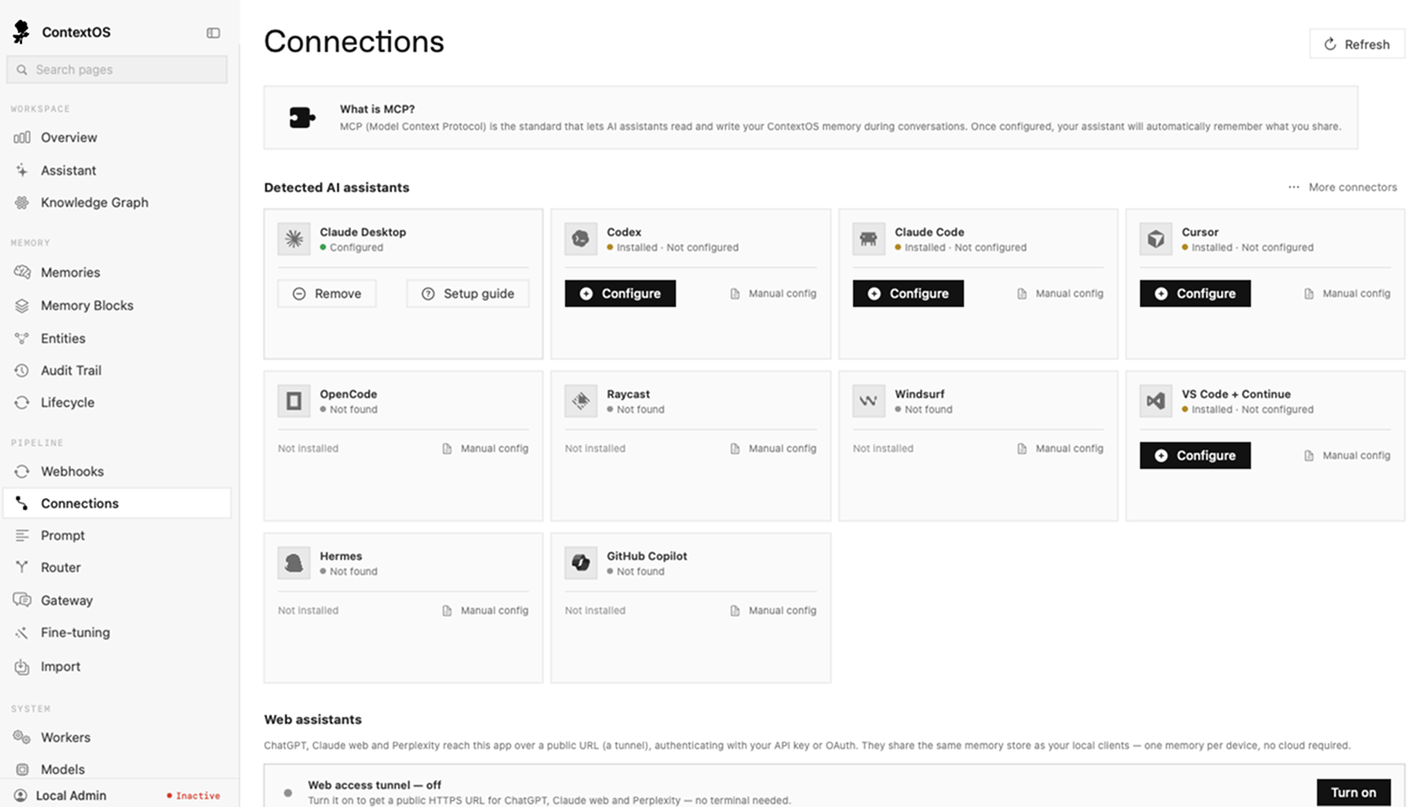
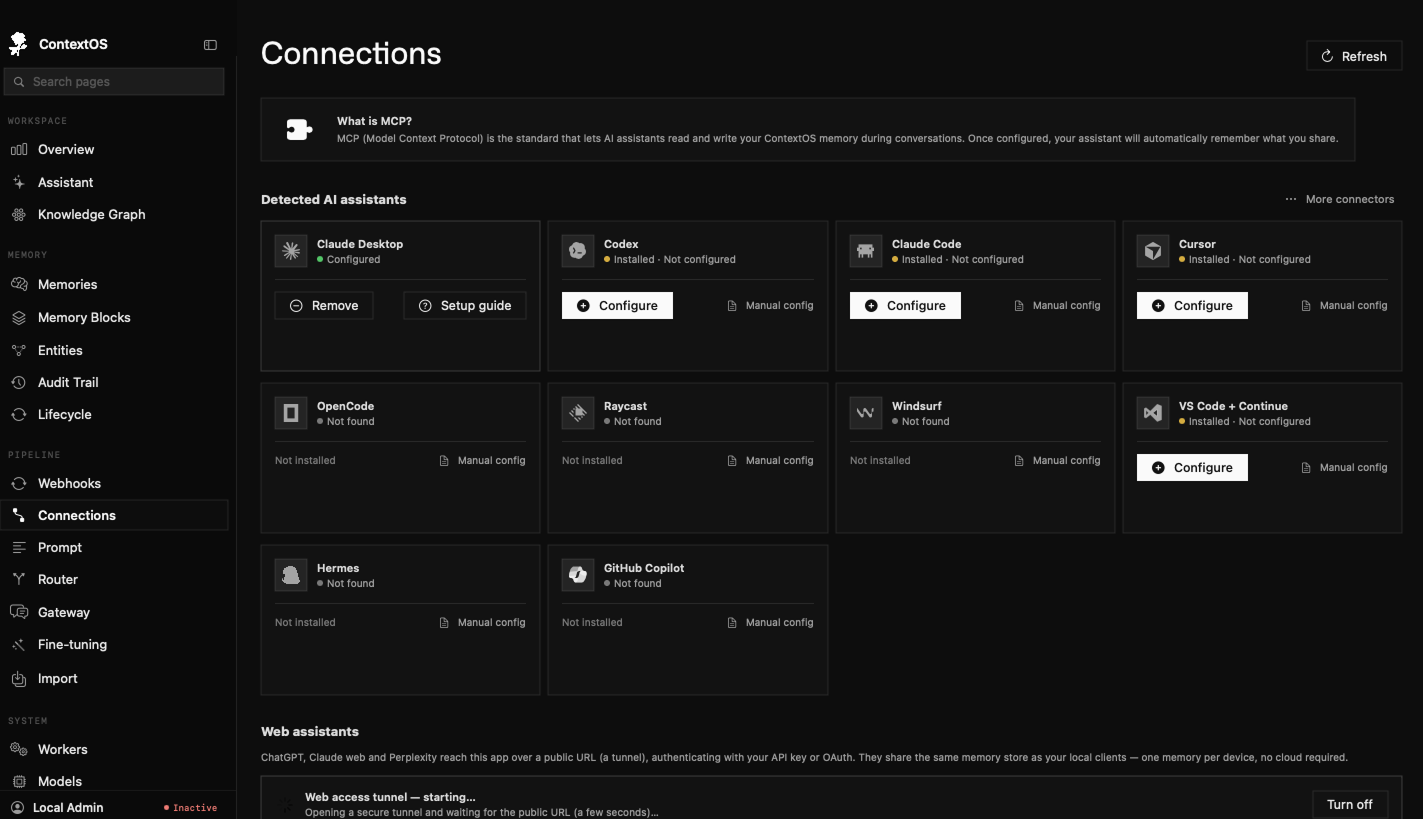
- 1Find the app you want to connect in the list — for example Claude Desktop or Cursor.
- 2Click Configure next to it. Esment wires it to your memory for you.
- 3The app’s status changes to Configured. That’s the setup done.
Esment can connect popular desktop apps this way, including:
- Claude Desktop and Claude Code
- Cursor, Windsurf, VS Code and Codex
- Raycast, OpenCode and other MCP-compatible apps
Only apps installed on this Mac appear in the list. If you install a new one later, come back to the Connections page and it’ll be there.
The one step everyone misses
After you click Configure, there’s one thing you must do — and it’s the single most common reason people think the connection “isn’t working.”
Fully quit and reopen the app
Assistants only load their connections when they start up. So after connecting one, you have to fully quit it and open it again — just closing its window is not enough.
- 1With the assistant app in front, press ⌘Q (or choose Quit from its app menu). Closing the window with the red dot does not count.
- 2Wait a moment, then open the app again.
- 3Start a new conversation. Your memory is now available in it.
On a Mac, closing a window usually leaves the app running in the background. For the connection to load, the app has to be quit (⌘Q) and reopened. When in doubt, quit it fully.
Check it’s working
Want to be sure the connection took? Open the assistant, start a new chat, and ask it something simple:
What memory tools do you have available?
If it’s connected, it will mention Esment memory tools — things like searching your context, saving a memory, and listing what it remembers. You can also just tell it a fact about yourself, start a brand-new chat later, and see whether it remembers.
Back on the Esment Connections page, connected apps also show up under active sessions once they’ve talked to your memory — a handy way to confirm things are live.
Other apps & managing connections
Apps that aren’t in the list
Any MCP-compatible app can connect, even if it isn’t detected automatically. On the Connections page, the Manual setup section gives you a small snippet you can copy into the app’s own settings. If you’re not comfortable with that, it’s completely optional — the one-click apps cover most people.
Removing a connection
To disconnect an app, click Remove next to it on the Connections page, then quit and reopen that app so the change takes effect.
Seeing what’s connected
The Connections page also shows active sessions and recent activity, so you can see which apps are using your memory and when they last did.