

Memories, blocks & profile
This is the heart of Esment — what it remembers and how you shape it. The ideas here are the same whether you use the Mac app or Esment Cloud, so it’s the one guide worth reading in full.
What a memory is
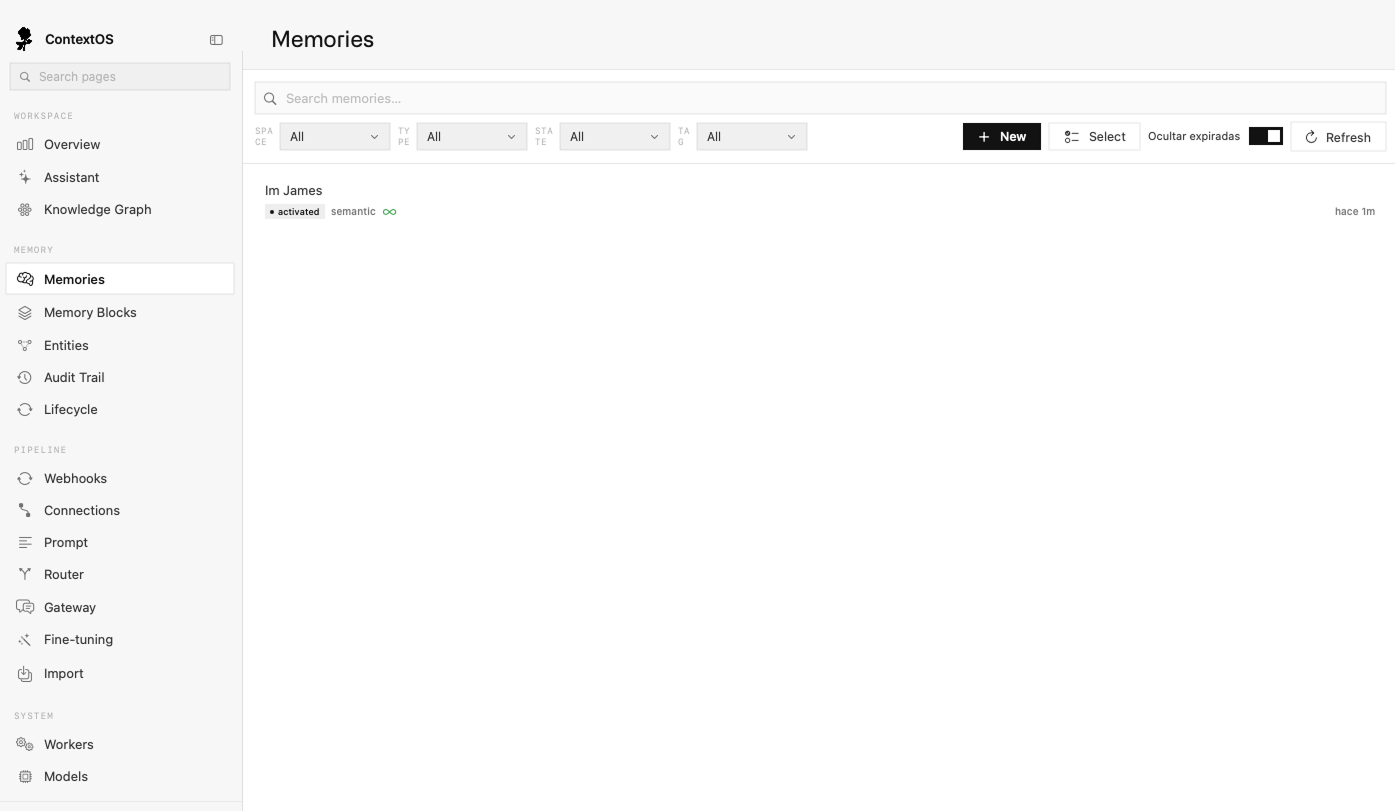
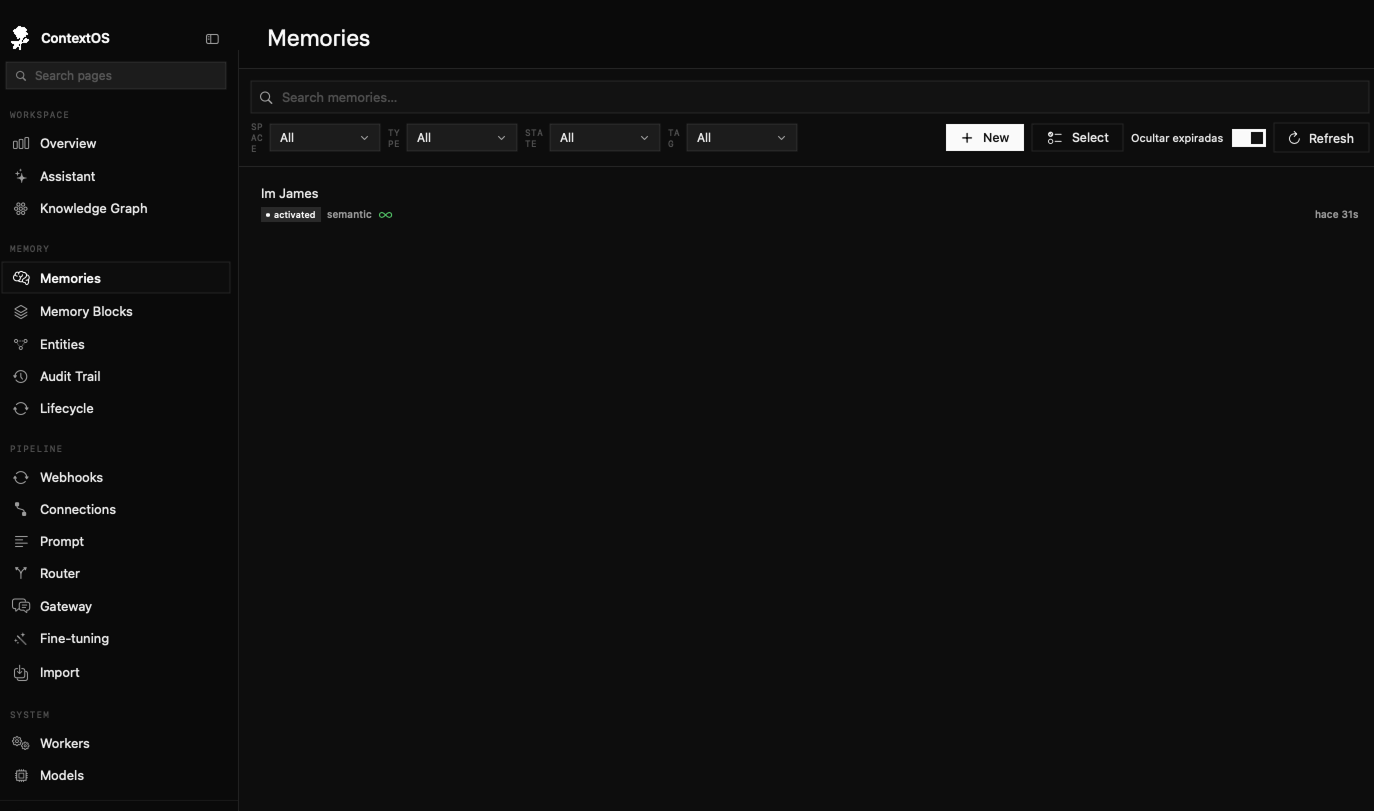
A memory is a single thing worth remembering — a fact, a preference, a decision, a piece of context. “I prefer short replies,” “my company is called Acme,” “we chose blue for the logo.” Each one is small, and together they build up a picture your assistant can draw on.
How they’re captured
Mostly, you don’t do anything. As you talk to a connected assistant, Esment notices the durable details worth keeping and saves them for you. The next conversation — in that assistant or any other connected one — starts already knowing them.
You can also be explicit
- Ask it to remember. Say “remember that…” and it’ll save the fact right away.
- Add one yourself. In the app or cloud dashboard you can type a memory in directly.
- Ask what it knows. Say “what do you remember about me?” to have it list things back.
The more naturally you talk about your work, preferences and decisions, the more useful your memory becomes — there’s no special phrasing to learn.
Quick capture (⌥C)
Sometimes you just want to jot something down without opening an assistant at all. In the Mac app, Quick Capture lets you save a memory in seconds, from anywhere.
- 1Press ⌥C (Option-C) from any app — a small capture note pops open. You can also open it from the Esment menu bar icon (Quick Capture ⌥C).
- 2Type the thing you want to remember.
- 3Choose where it goes: Session (relevant to what you’re doing right now) or User (a lasting fact about you).
- 4Press ⌘Return (or click Save). It’s saved straight into your memory and available to every connected assistant.
Because it’s a global shortcut, Quick Capture opens on top of whatever you’re doing — no need to switch to Esment first. It’s available on every plan.
Bringing in what you already have
Already have history worth keeping? The app’s Import page can bring conversations from ChatGPT (or another device) into your local memory, so nothing you’ve built up is lost. The file stays on your Mac.
The life of a memory
Not every memory should live forever. Esment gives each one a simple status so your memory stays fresh and relevant instead of piling up. You’ll see these labels in the dashboard.
- New — just captured, being folded into your memory.
- Active — in regular use and available to your assistants.
- Merged — combined with a related memory to avoid duplicates.
- Archived — set aside as it becomes less relevant, but still kept.
- Expired — aged out after a long time unused.
This all happens on its own. You never have to tidy up — but you can always step in, as the next section shows.
Pin, edit & forget
Everything Esment remembers is yours to manage, from the Memories view.
- 1Pin the important ones. Mark a memory as pinned (also called “evergreen”) so it’s always kept and never ages out.
- 2Edit anything. Open a memory to correct or reword it.
- 3Forget what’s wrong. Delete a memory you don’t want kept — or just tell your assistant “forget that,” and it will.
- 4Search it all. Look up anything in your memory by typing a few words.
If an assistant says something out of date, tell it the correct version. It can forget the old memory and save the new one for you, so future chats get it right.
Memory Blocks
Regular memories come and go as your work changes. Memory Blocks are the opposite: fixed, always-on notes that your assistant sees on every conversation. They’re the things that are always true and always relevant.
Memory Blocks are included with the Pro plan and higher. On the entry-level plan the Memory Blocks page is hidden — your regular memories still work as normal. The licenses guide lists what each plan unlocks.
What blocks are for
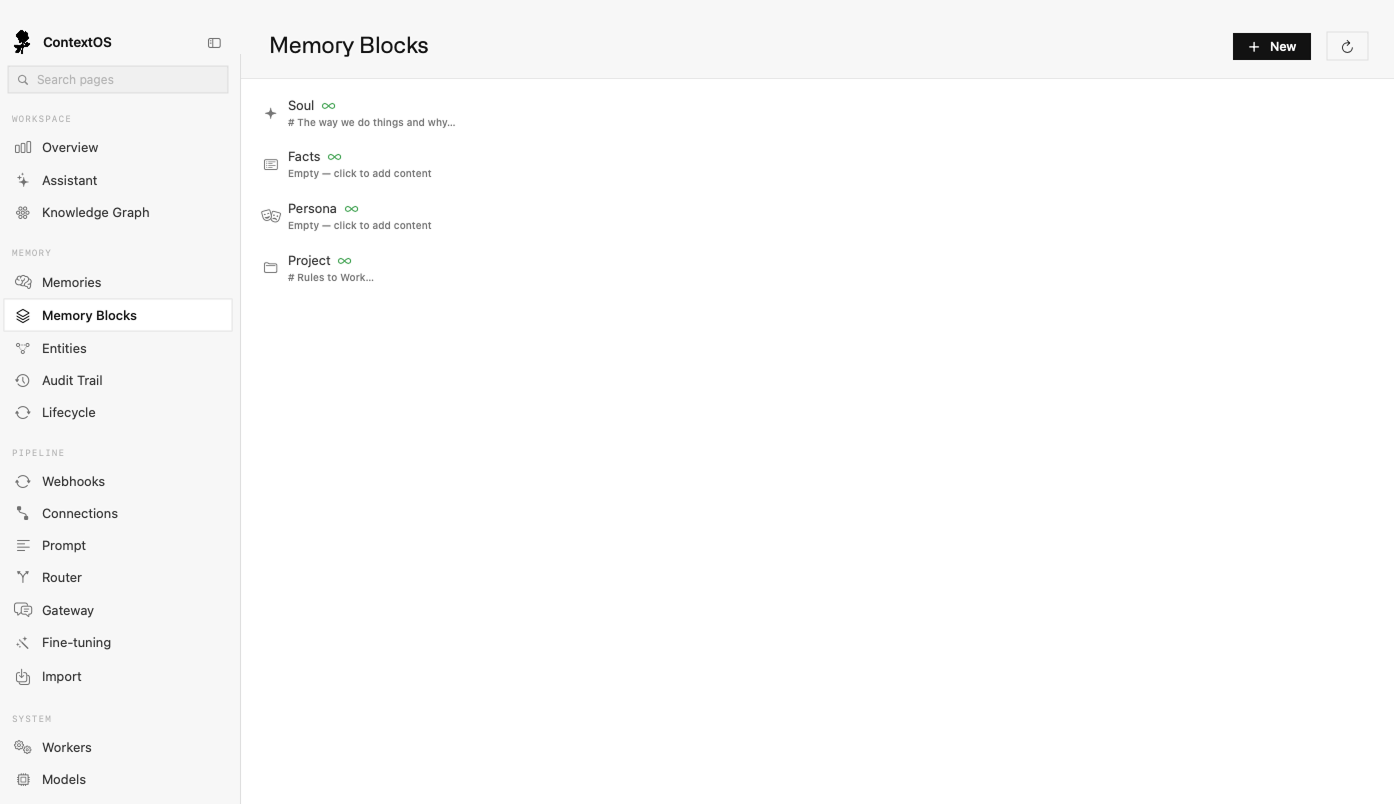
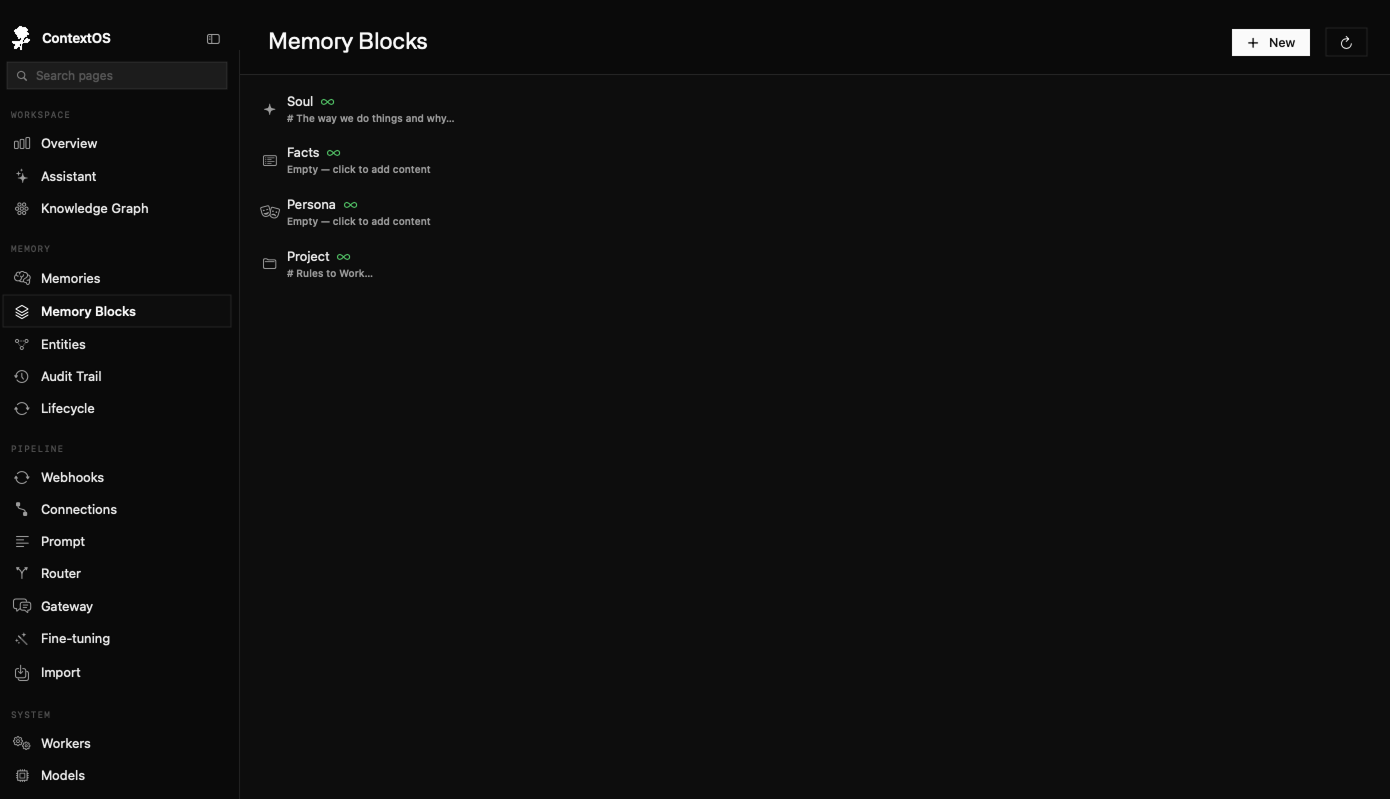
A block is just a named box of text you write and edit yourself (your assistant can update them too). Esment starts you off with a handful of useful ones:
- Soul — who you are: your identity, voice and values.
- Facts — hard, lasting facts about you or your organisation.
- Persona — how you’d like the assistant to behave and sound.
- Project — the context of what you’re currently working on.
- Custom — any block you name yourself, for anything else.
Editing a block
- 1Open the Memory Blocks page and pick a block from the list (or click Create starter blocks if you’re starting fresh).
- 2Type or paste into the text area — plain, everyday language works best.
- 3Click Save. From now on, connected assistants see it on every request.
Unlike regular memories, blocks are always kept and always applied. Keep them short and true — they’re the steady backdrop your assistant works against.
The starter set (Soul, Facts, Persona, Project) covers most people. Custom blocks — and reserving more space for blocks — come with the higher plans; see the plans overview.
Your Profile
The Profile page is a read-only summary of what Esment has learned about you over time — durable traits like your preferences, how you work, and your ongoing projects, gathered from your conversations.
- It builds itself. You don’t fill it in; Esment distils it from your memories.
- It’s a mirror, not a form. To change something in it, edit or forget the underlying memory — the profile updates to match.
Profile learning currently runs in the Mac app. On the hosted cloud service this view may be empty for now, while your memories are still captured and searchable as usual.
In the Mac app, the Profiles view is part of the multi-space plans (Team and up). On every plan your memories and blocks still shape what your assistant knows — the Profiles page is just an extra, higher-tier way to see it summarised.