

Account & security
Change your name and appearance, manage your password and sessions, and export or delete your data.
Name & appearance
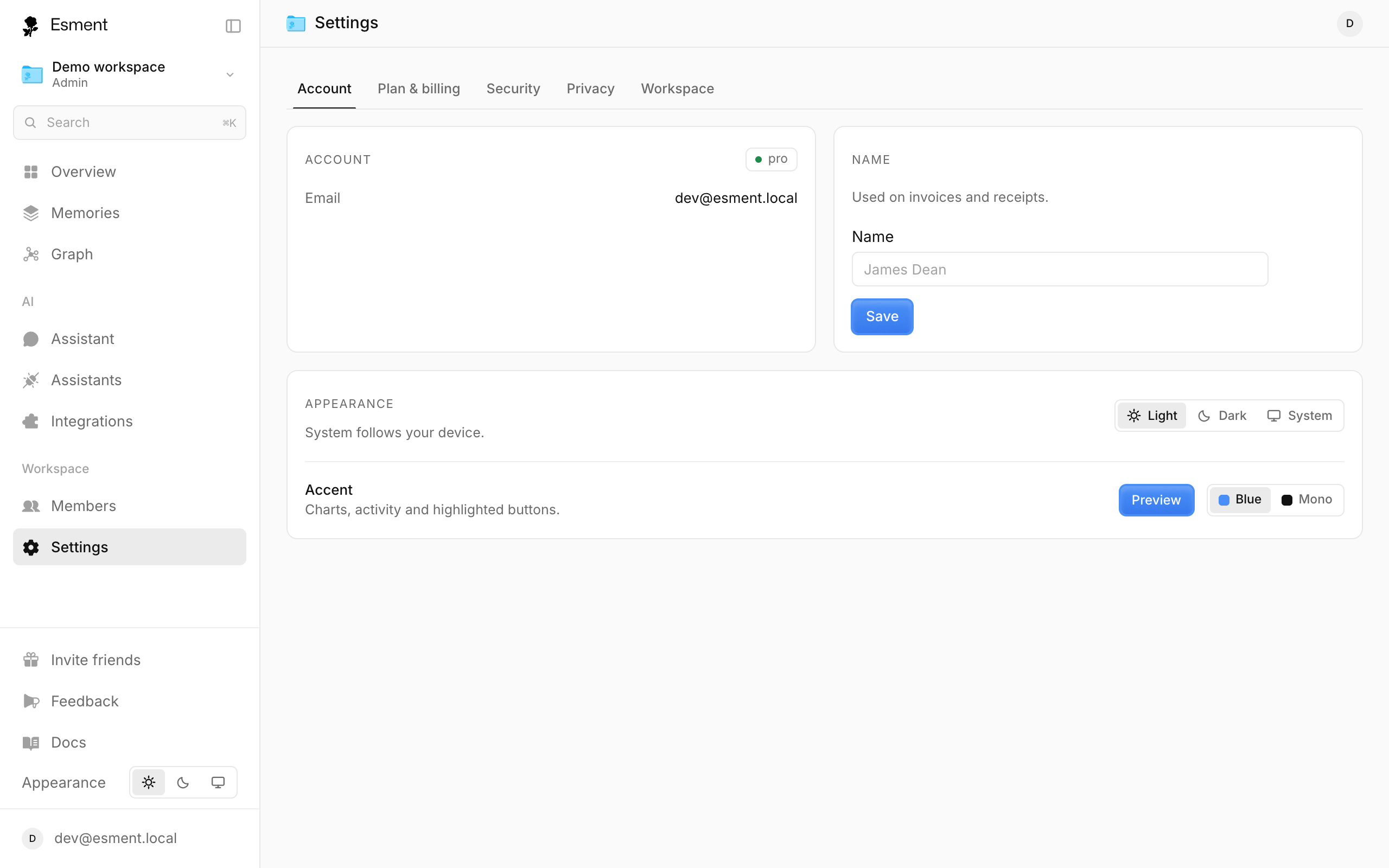
Open Settings on the web. The Account tab opens first and shows your email and your plan.
- 1In the Name card, type your name and click Save. It is used on invoices and receipts.
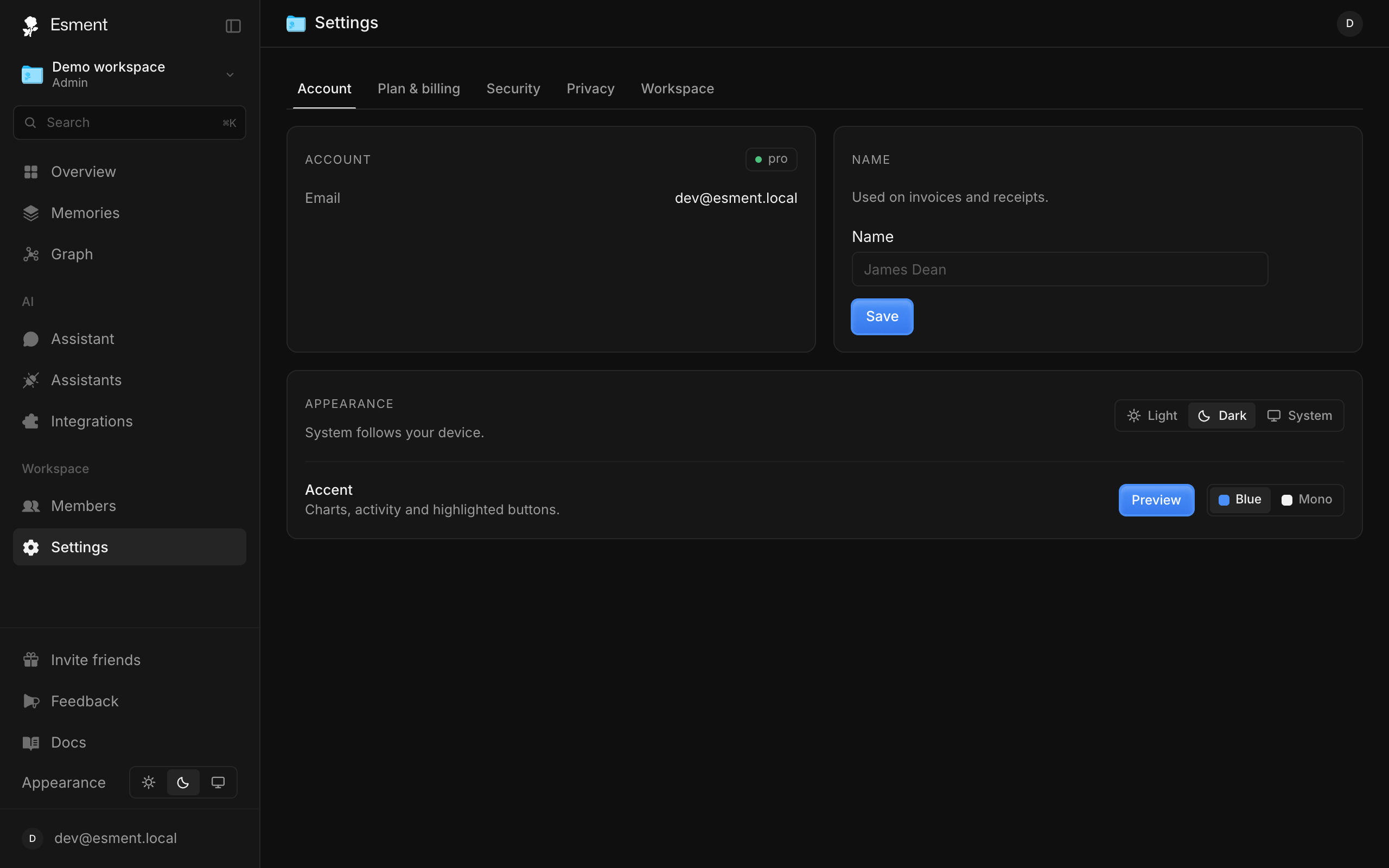
- 2In Appearance, choose Light, Dark or System. System follows your device.
- 3Under Accent, choose Blue or Mono for charts, activity and highlighted buttons.
Password & sessions
Open the Security tab.
- 1In the Password card, enter your Current password, then a New password of at least 8 characters and the same again in Confirm password. Click Update password.
- 2If you signed in without a password, the card says Set a password instead. Choose one so you can sign in without an email link.
Forgot your password? On the sign-in page, click Forgot your password?. The email link signs you in and opens this tab so you can choose a new one without the old one.
The Sessions card has Sign out all devices. Use it if you lose a device. After you confirm with Yes, sign out everywhere, every signed-in session on your cloud memory ends, including the iOS app and assistants you connected through this account. You can sign back in right away, and nothing is deleted.
Export your data
There are two things you may want to export, and they live in different places.
- Your account data. In Settings → Privacy, click Download JSON under Export my data. The file has your account details, licenses, activations and aggregate usage.
- Your memories. In Memories, click Export pack, then Download pack. It is a plain JSON file with everything, including archived memories. The Mac app can export the same kind of pack with Export pack….
Delete your account
In Settings → Privacy, the Delete account card removes your account, subscriptions, licenses, activations and usage history. Your licenses stop working immediately, and the cloud memory in workspaces you own is erased within 30 days. This cannot be undone.
- 1Export anything you want to keep first (see above).
- 2Type DELETE in the box.
- 3Click Delete my account. You are signed out and sent to the home page.