

Memory Blocks
Short notes about you and your work that every assistant reads before anything else.
What a block is
Regular memories come and go as your work changes. A Memory Block is the opposite: a named note that you write and keep up to date, and that your assistants see at the start of every conversation. Blocks are never archived or aged out.
You can edit them in the web dashboard or in the Mac app, and your assistant can update them too.
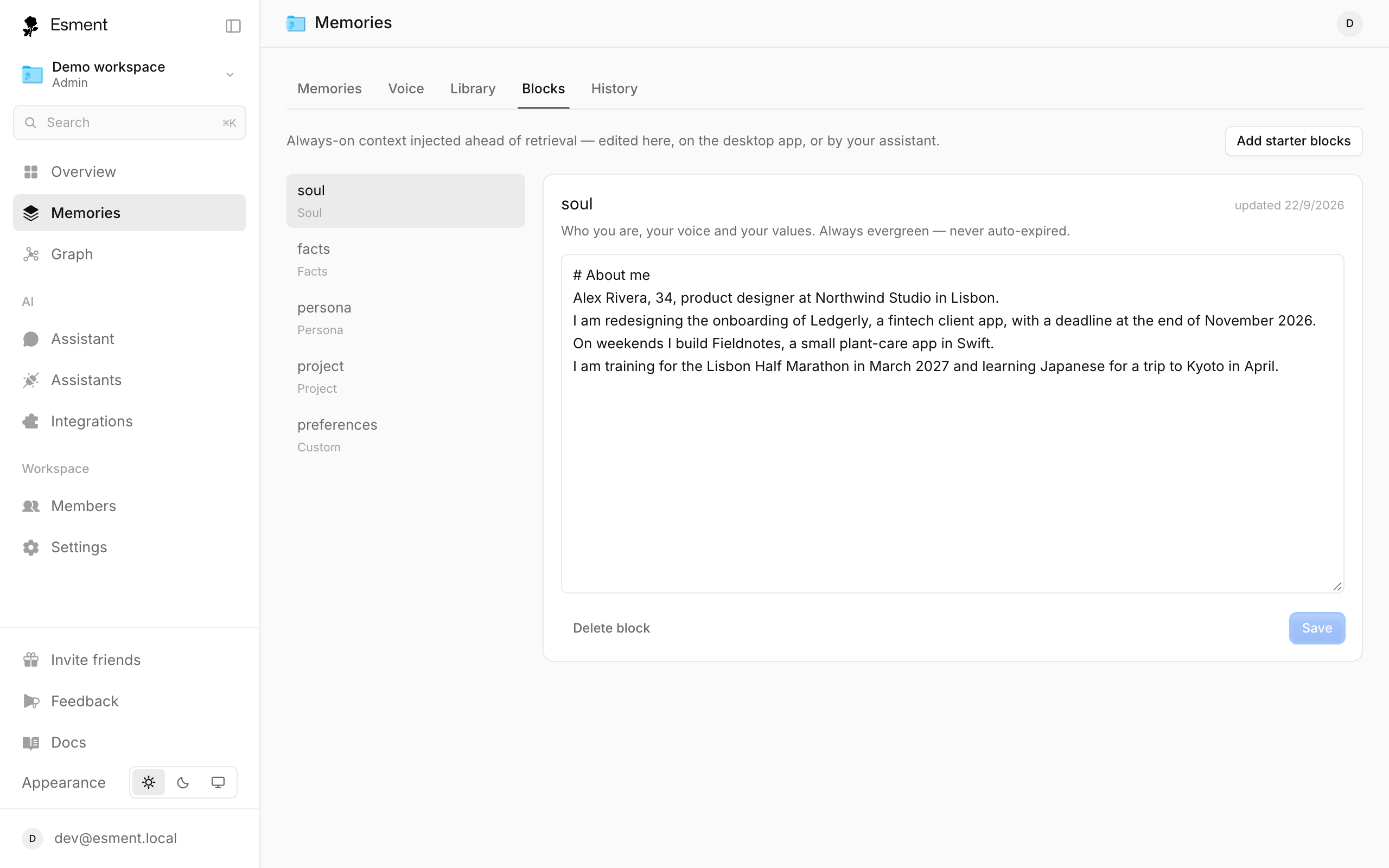
Persona, Soul, Facts, Project
Esment starts you off with four blocks.
- Soul: who you are, your voice and your values.
- Facts: hard, lasting facts about you or your organisation.
- Persona: how you want the assistant to behave and sound.
- Project: the context of what you are working on now.
- 1Open Memories → Blocks.
- 2If you have none yet, click Seed canonical blocks. It creates the Soul, Facts, Persona and Project blocks.
- 3Pick a block, write in plain language and click Save.
Custom blocks
Need a block for something else, such as one client or a long-running project? Create a custom block with its own name.
- 1In Memories → Blocks, click New.
- 2Give it a unique name, for example project:acme, choose its kind, and write the content.
- 3Click Create Block.
A block can be switched off: it is kept but no longer shown to assistants. On the web it then carries an off tag. Delete block removes it for good.
Block or memory?
- Use a block for things that are always true and always useful: who you are, how you like answers, the project you live in.
- Use a memory for single facts and decisions: “we chose blue for the logo”. They are found when relevant and can age out.
- If you would want it read in every chat, make it a block. If it only matters sometimes, let it be a memory.
Not sure which is which? Start with memories and pin the few that must always be known. See Find, edit & forget.