

History & Time Travel
See what your assistants learned on any day, how often your memory grows, and what it held at any moment.
Day, week, month, year
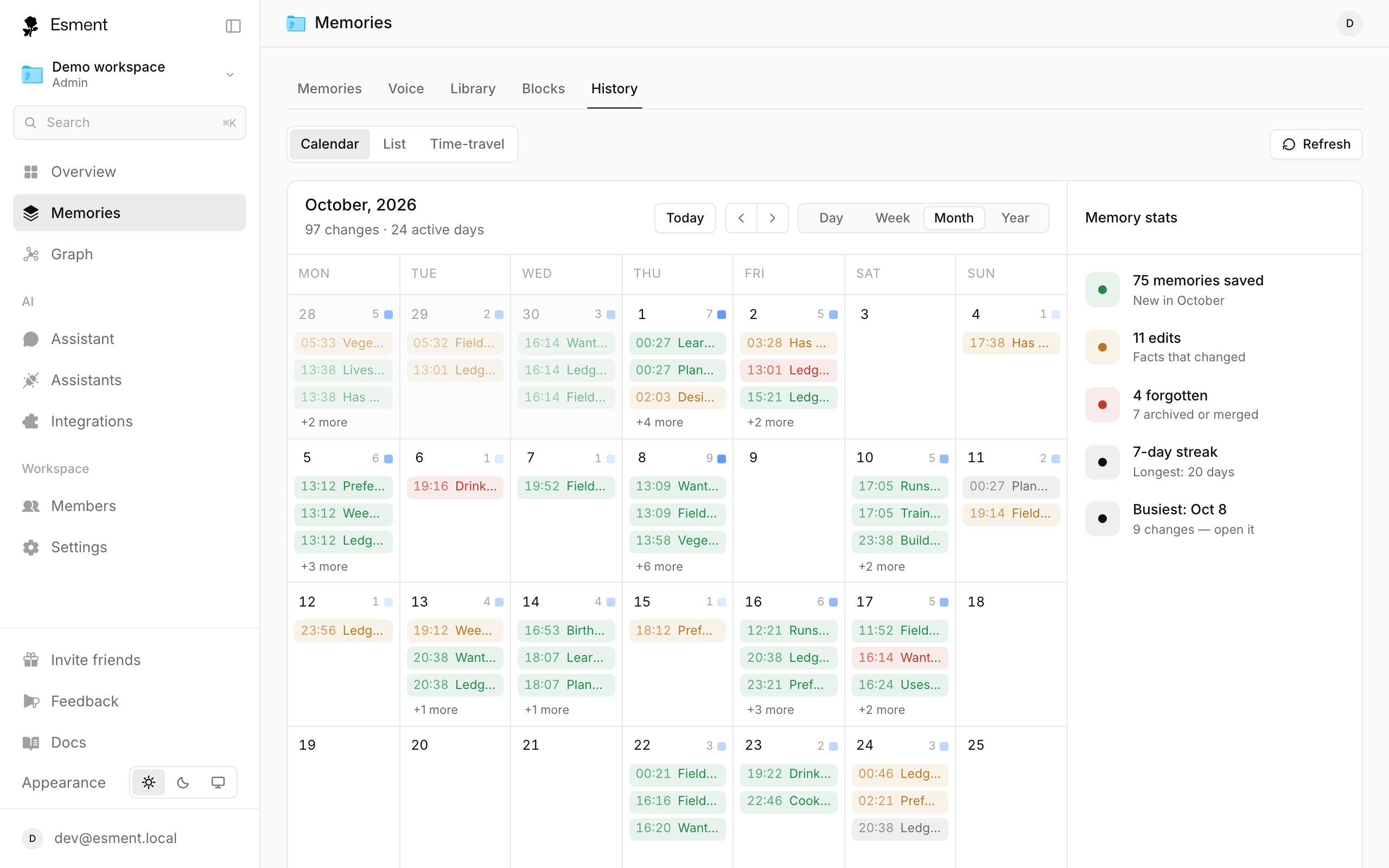
Every memory has a date, and every change to it is recorded. History shows those changes on a calendar, each one at the time it happened. Colours tell you what kind of change it was: a memory that was saved, edited or forgotten, and also a state change such as archived or merged.
- 1Open Memories → History.
- 2Choose Calendar, then switch between the Day, Week, Month and Year views.
- 3Pick a day to see its memories listed below the calendar.
On the web you can also use the keyboard: D W M Y switch the view, the left and right arrows step through time and T jumps to today.
Activity map
Next to the calendar is a map of your recent activity, in the style of a contribution graph on GitHub. Each square is a day, and the darker it is, the more your memory changed. Hover a square for the count and click it to open that day.
- How many memories were saved, edited and forgotten in the period you are looking at.
- Your streak: how many days in a row your memory has changed, and your longest.
- Your busiest day. Click it to open it.
A shorter version, Memory activity, sits on the web dashboard’s Overview page. Click any day there to open the calendar on it.
Time Travel
Time Travel shows your memory exactly as it was at a past moment: what your assistants knew then, before a fact was changed or added.
- 1Open a day in the calendar and click See memory as of this day, or open the Time Travel view directly (on the web it is called Time-travel).
- 2Choose a day, or use a shortcut: 1 week ago, 1 month ago or 3 months ago.
- 3Drag the handle along the hours. It snaps to each change, and the list shows your memory as of that time.
To focus, type a topic in Narrow to a topic (optional), for example “pricing”. Time Travel does not change anything. It is only a way of looking back.
List view
Prefer a plain list? Choose List. It shows every change as a commit (a saved record of one change) with who made it and when.
- Select a commit to see exactly what it changed.
- On the web, select two commits and click Compare changes to see the difference between them.
- Open a single memory to see only its own history.