

The built-in Assistant
Chat with an AI model of your choice, right inside the dashboard, with your Esment memory in front of it on every reply.
What it is
The Assistant page is a chat window. Before it answers, Esment looks up the memories that matter to your question and hands them to the model, so the answer starts from what you already told your AI. Afterwards, the exchange is sent to your memory so Esment can learn from it too.
Esment does not include a model of its own. You bring your own account with an AI provider and paste its API key (a long secret code that lets an app use your account). The provider bills you directly.
The Assistant needs your cloud memory to be set up. If it is not, the page says Cloud memory is not set up yet and offers Set up cloud memory.
Connect a model
- 1Open Assistant and click Provider settings at the top. On a new setup you can also click a provider under Connect a model to start.
- 2Choose a provider: OpenAI (GPT models), Anthropic (Claude models) or OpenRouter (open models).
- 3Click Get a key to open the provider’s page, create a key, then paste it into the key field. The dot underneath turns green and says Saved in this browser.
- 4Pick a model from the chips. The one marked default is used when you pick nothing. Click Done.
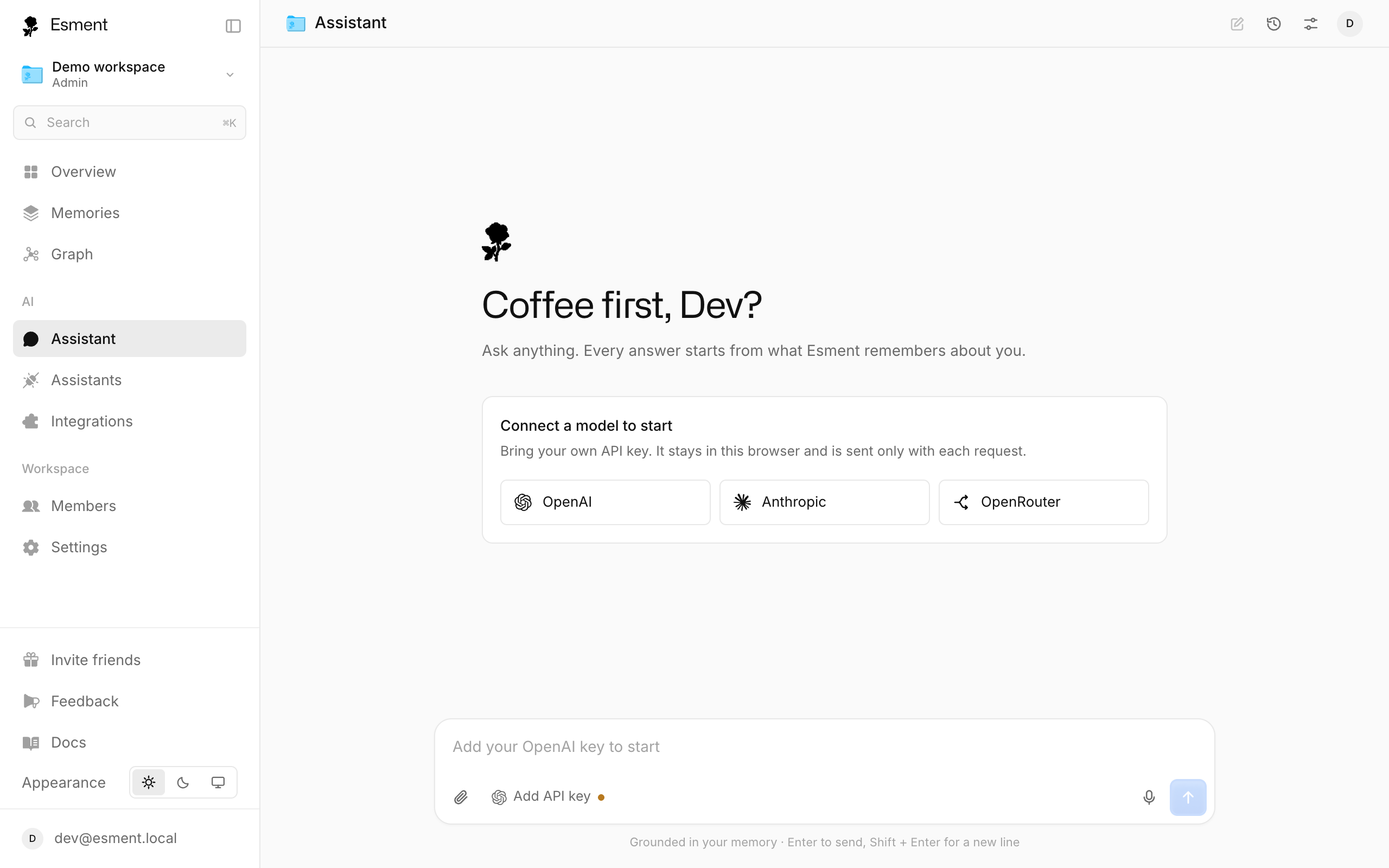
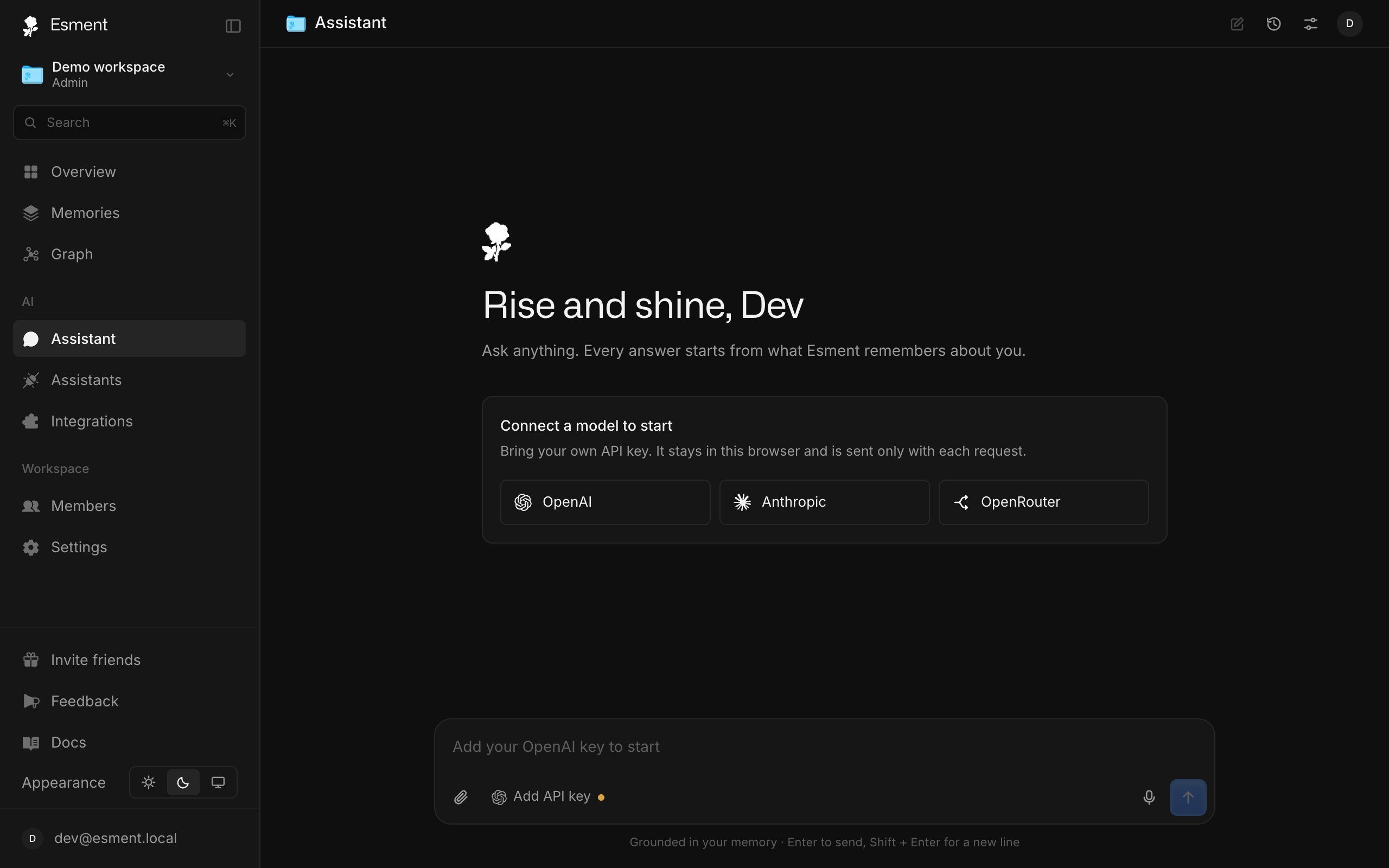
Need a model that is not in the list? Click Custom model ID and type any ID your provider accepts. You can also switch model at any time from the model name beside the message box.
Attach files
Click the paperclip (Attach files), drag files onto the page until it says Drop to attach, or paste them into the message box. You can add up to five per message.
- Images up to 4 MB. The model looks at them.
- PDFs up to 8 MB. Their text is read in your browser. A scanned PDF with no text is turned into page images (the first few pages) instead.
- Text and code such as .txt, .md, .csv, .json or .py. Only the first 60,000 characters are used.
Anything else is refused with a message saying the file type is not supported.
Dictate
Click the microphone (Dictate), speak, then click it again (Stop and transcribe). The words appear in the message box for you to check and send. Your browser asks for microphone permission the first time.
By default the speech is turned into text inside your browser, so the audio never reaches an AI service. If you prefer OpenAI’s transcription, open Provider settings and use Use OpenAI transcription instead with an OpenAI key. The Voice input switch there turns dictation on or off. See Voice notes for how in-browser transcription works.
See what it used
Under each reply is a small line such as 3 memories · 1 change to memory. Click it to open the receipt.
- The memories it started from. Click one to open it, or use the pin icon to keep it always in context.
- The memory actions it took: Searched memory, Read recent memories, Saved a memory, Corrected a memory, Forgot a memory or Pinned a memory. A green dot marks the ones that changed something.
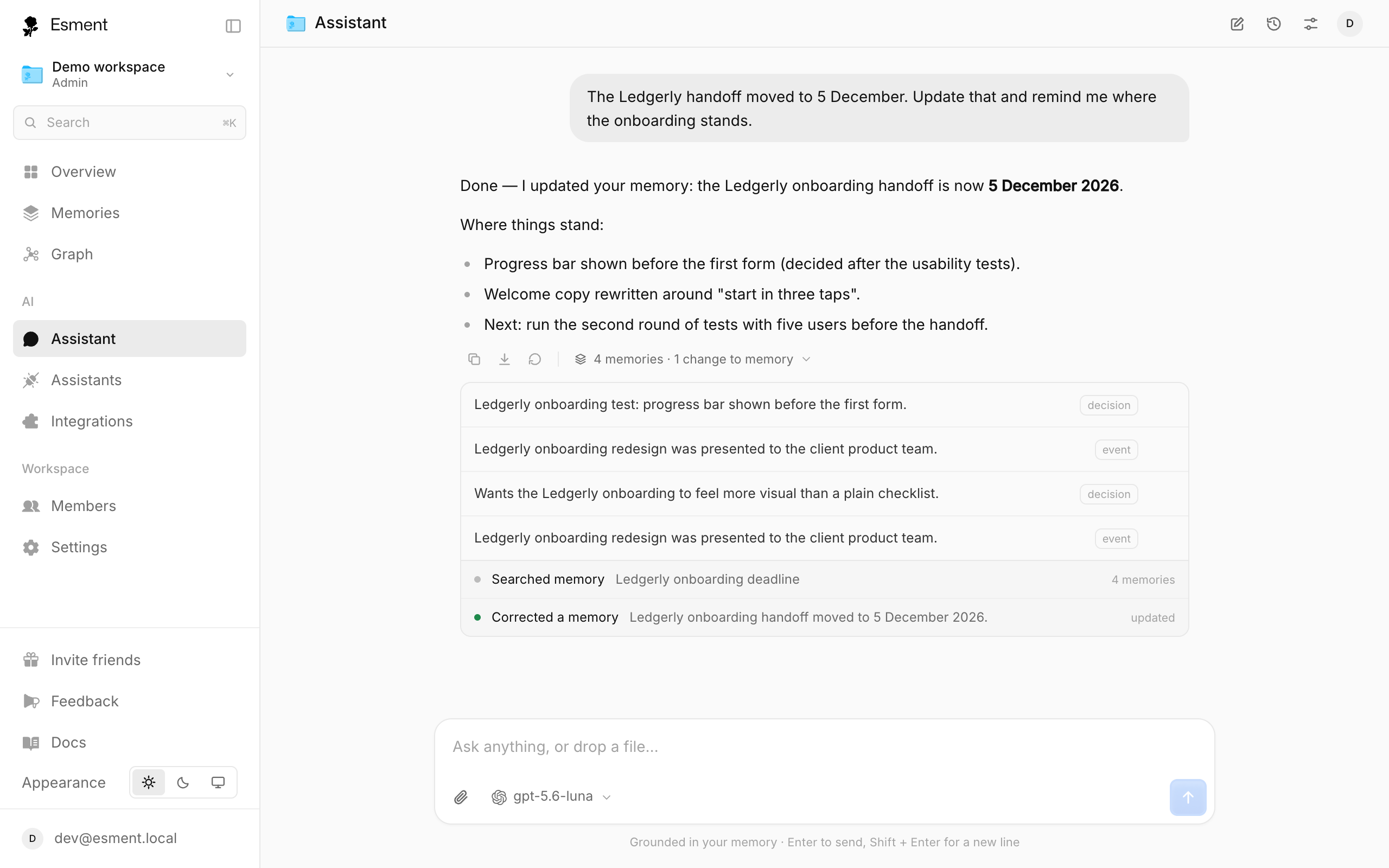
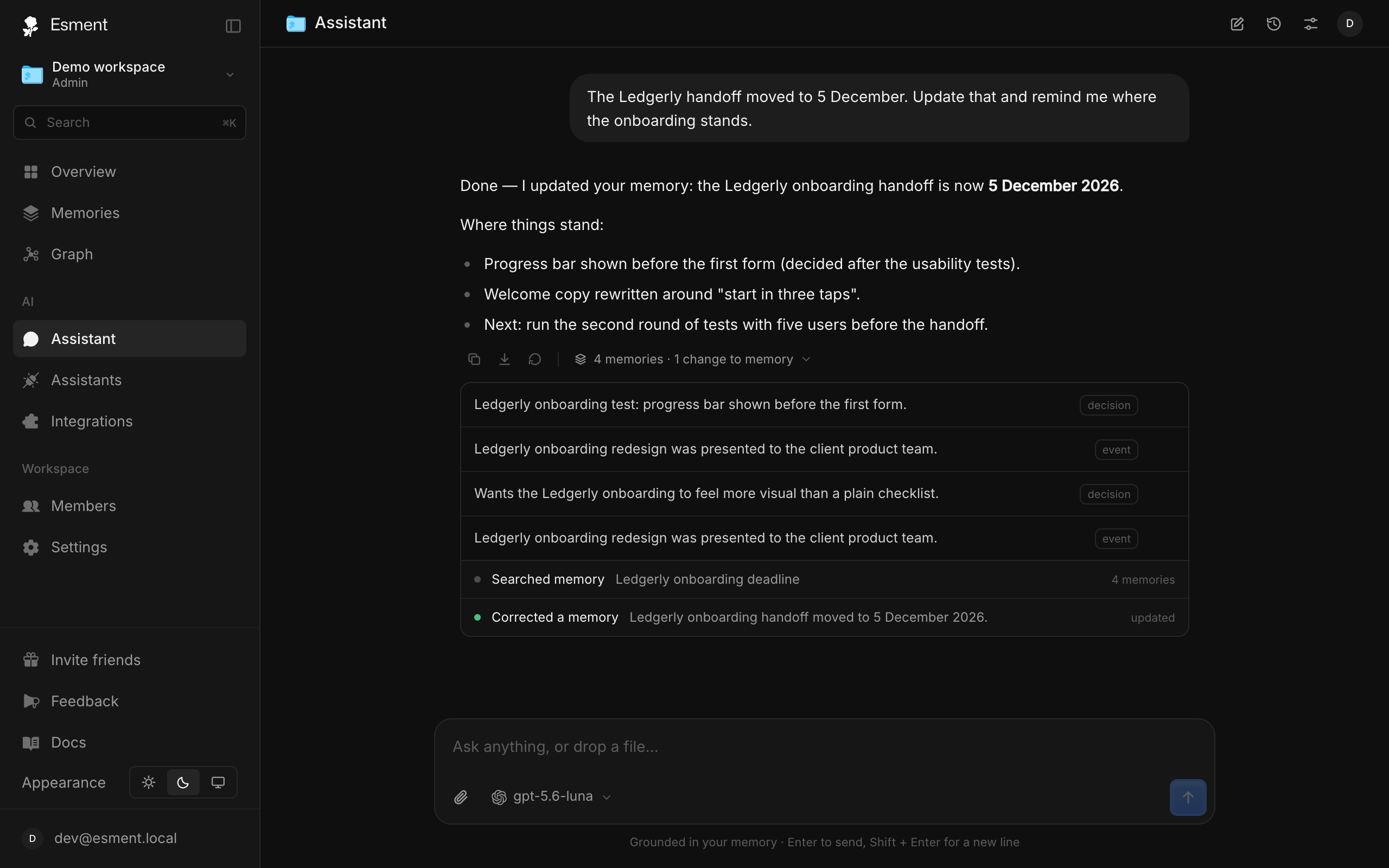
Beside the receipt are Copy, Download as Markdown and Regenerate. While a reply is being written, click Stop or press Esc; what already arrived is kept.
Chat history
Chats are saved as you go. Click New chat to start fresh and History to reopen an earlier one. The list is grouped by Today, Yesterday and older, has a search box once you have more than five chats, and a trash icon to delete one.
Conversations, your provider and your key all live in this browser, not in your Esment account. Esment keeps the 50 most recent chats, and a chat keeps its last 200 messages. Large images are not kept in the saved copy. Clearing your browser’s site data removes them, and they do not follow you to another device.