

Find, edit & forget
Search your memory in any language, correct a fact, pin what matters and forget the rest.
Search
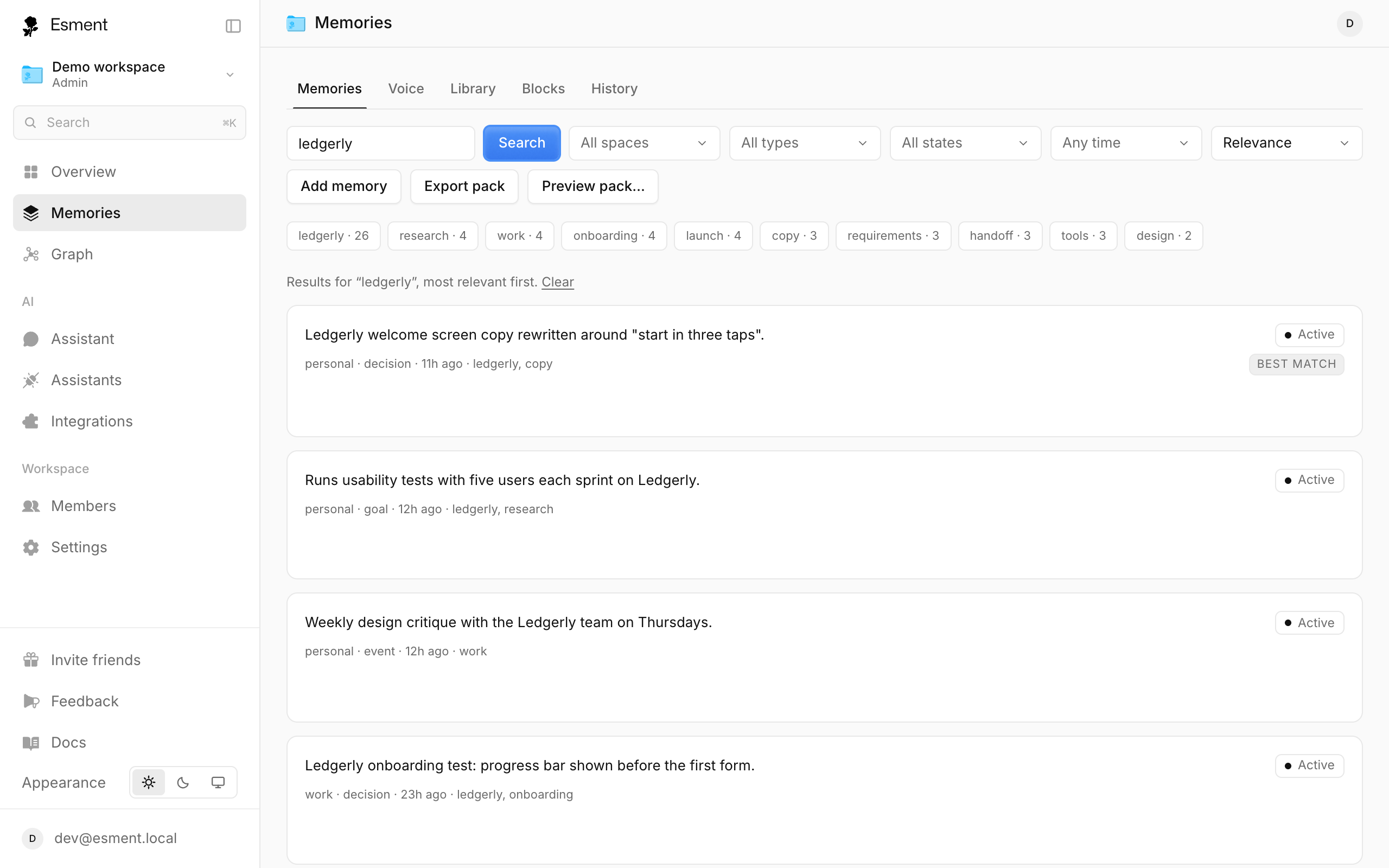
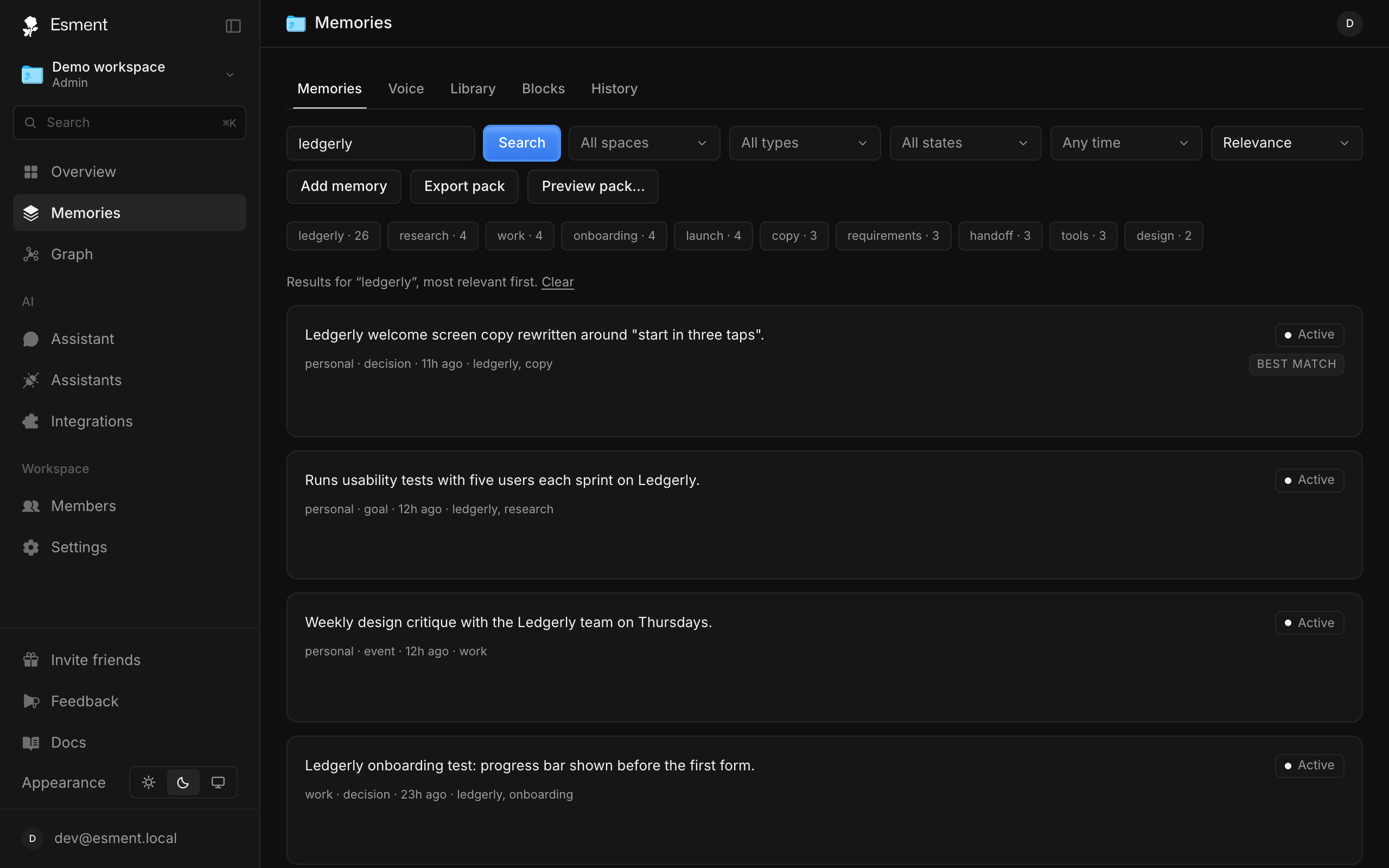
You can look up anything you have saved by typing a few words. Search understands meaning, not only exact words, so “flat” can find a memory about your apartment. It also works across languages: Spanish, English, German, French and Italian, even when you saved a memory in one language and search in another. Singular and plural forms match each other.
- 1Open Memories and type in the search box at the top.
- 2Results appear as you type, best match first.
- 3Click a result to open the full memory.
Edit a memory
If a memory is out of date or worded badly, fix it in place.
- 1Open the memory from Memories.
- 2Click Edit, change the text and save.
You can also just tell your assistant the correct version. It will update the memory for you.
That is out of date: I moved to Lisbon in March. Please update my memory.
Pin: always in context
Pin a memory when it should never fade, such as an allergy, a rule you always want followed or the name of your company. A pinned memory is never archived or aged out automatically, and it is part of the brief your assistants read at the start of a chat.
On the Mac the same idea is called Evergreen. Switch it on when you create a memory, in New Memory or in Quick Capture (the star).
Changing Evergreen on a memory that already exists is not documented here yet.
Forget
Forgetting removes a memory from what your assistants see. Do it from the memory list, or tell the assistant “forget that”.
- 1In Memories, select one or more memories.
- 2Click Delete and confirm.
Not sure? On the web, Archive sets a memory aside without forgetting it, and Restore brings it back.
Filters & tags
Narrow the list with the dropdowns above it.
- Space: where the memory belongs, for example user for lasting facts about you or session for what you are doing now.
- Type: Fact, Knowledge, Moment or How-to.
- State: New, Active, Merged, Archived or Forgotten. See How memory works.
- Any time (web): last 24 hours, 7, 30 or 90 days, or a year.
- Tag: on the web, click a tag chip above the list. On the Mac, pick one from the Tag filter.
Tags are your own labels. Add them, separated by commas, when you create a memory.
Which assistant saved it
Under each memory you will see a small line with its space, type, age and tags. When an assistant saved it, the line also says via and the assistant’s name, such as via Claude. Summaries that Esment writes carry an Auto summary label instead.
If a memory is wrong or mixed up, this shows which assistant to correct. Memories saved before the label existed do not show a name.