

The app, screen by screen
Open Esment from the menu bar and you’ll find a small set of pages down the side. Here’s what each one is for, so you always know where to look.
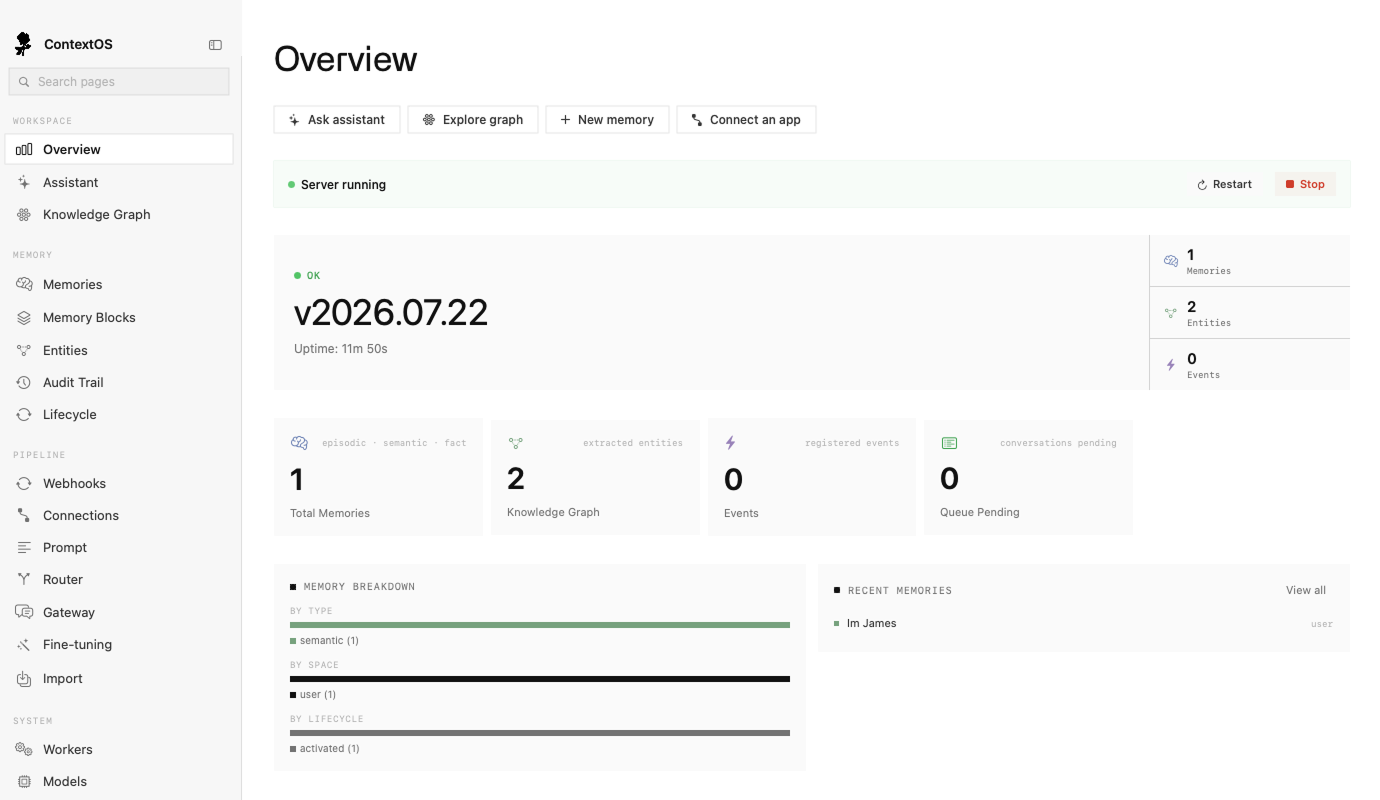
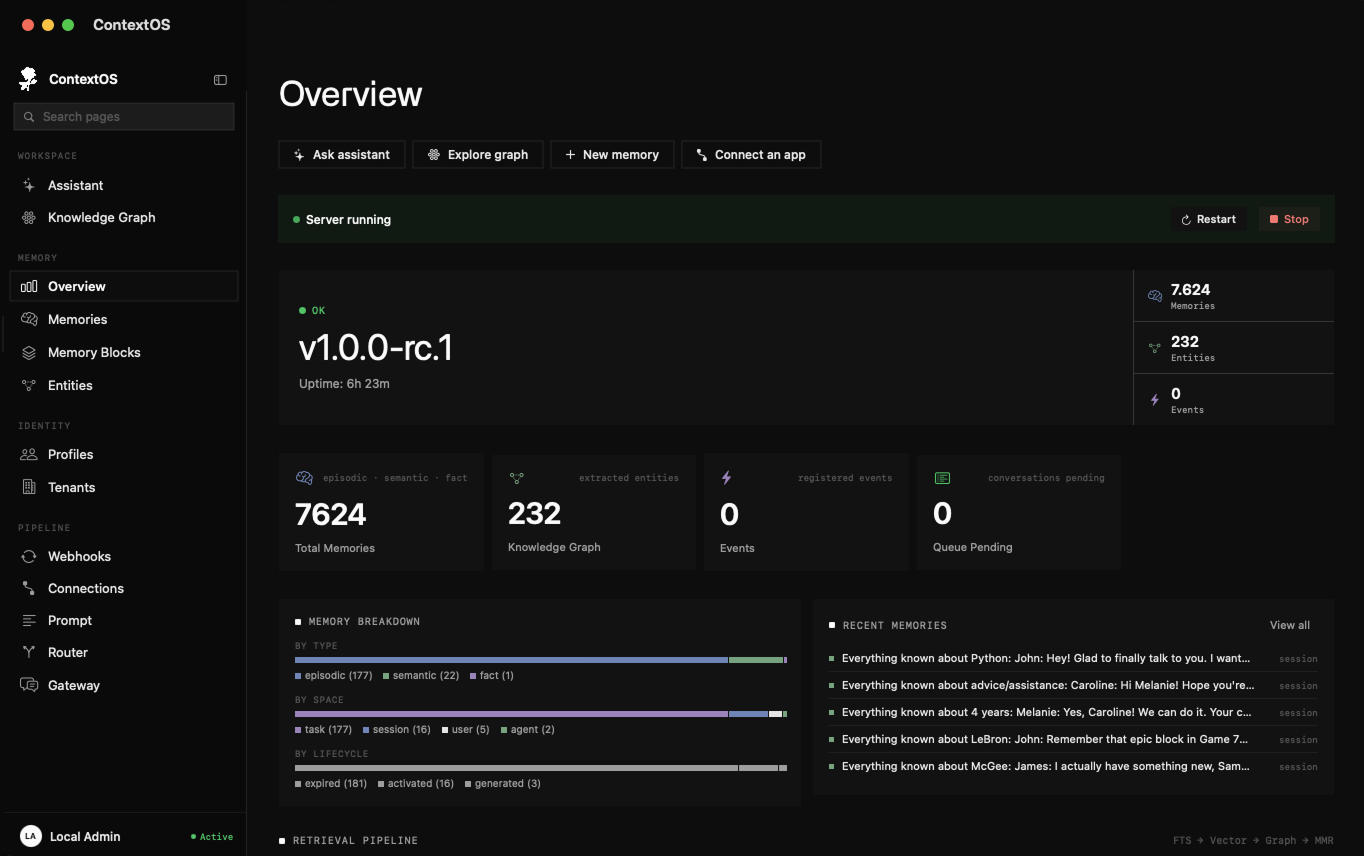
Overview
Your home base. At a glance it shows how many memories you have, how much of your plan you’re using, and your most recent memories. A good place to land and confirm everything’s healthy.
Memories, Blocks & Profile
Three pages cover what Esment remembers. They’re explained in full in their own guide — here’s the short version:
- Memories — browse, search, pin, edit and forget everything captured so far.
- Memory Blocks — the fixed, always-on notes your assistant sees every time.
- Profile — a read-only summary of what Esment has learned about you.
How memories are captured and pinned, what blocks are for, and how your profile builds itself — all in one guide.
Memory Blocks appears on Pro and up; the Profiles view on the multi-space (Team) plans. Whichever plan you’re on, your memories always power your assistant — see what each plan unlocks.
Quick Capture
Press ⌥C (Option-C) anywhere to pop open a small note and save a memory in seconds, without opening the app first. It’s on every plan.
The memories guide walks through Quick Capture and the Import page for bringing in existing ChatGPT conversations.
History
A record of your conversations and activity over time. Useful for looking back at what was discussed and when, and for seeing how your memory has grown.
Assistant
Esment includes a built-in assistant you can chat with directly inside the app — handy for asking what it remembers, or working with your memory without opening another app.
Esment is a memory engine, not a chatbot — so the built-in assistant needs an AI model to actually reply. In Settings → Assistant LLM you choose which model it uses. If you don’t set one up, the memory features still work everywhere else; only this in-app chat needs it.
Connections
Where you wire up your AI apps. It lists the assistants found on your Mac for one-click setup, and has the tools for connecting web assistants too.
- Desktop apps like Claude and Cursor — see the assistants guide.
- Web apps like ChatGPT and Perplexity — see the web assistants guide.
Settings
Settings holds everything you might occasionally need to adjust. Most people rarely open it — but here’s what’s worth knowing about.
The settings you’ll actually use
Account & usage
See your plan and how much of your memory allowance you’re using, without leaving the app.
License
Activate, manage or deactivate your license. Covered in full in the licenses guide.
Assistant LLM
Choose the AI model the app’s built-in assistant uses to reply, as noted above.
Web access
The sign-in option for web assistants. You only touch this if you’re following the web assistants guide and prefer signing in over an access key.
Replaying the setup wizard
Under About, Show onboarding again replays the first-launch wizard — handy if you skipped a step and want to redo it.
Settings also has power-user options — a drop-in model gateway, embeddings and memory tuning. These are for advanced setups (the gateway is part of the Team plan and up) and safe to ignore: the defaults are chosen so everything just works out of the box.
Files & support
The Files section gives quick access to your Esment folder, its settings file and its logs. You won’t normally need these — but if you ever contact support, they may ask you to open the logs so they can help.
Erasing your data
At the bottom of Settings is a Danger zone with an option to erase all your data. It permanently deletes every memory, block and profile on this Mac. To prevent accidents, you have to type DELETE to confirm.
This can’t be undone. If there’s any chance you’ll want your memory back, export a backup before erasing.