

Voice notes
Say it once. Record a thought, let your own device write it down, and let your assistant keep what matters.
Record
Some things are easier to say than to type: an idea on a walk, the decisions after a call, what you want to remember about a book. A voice note is a recording plus its written transcript.
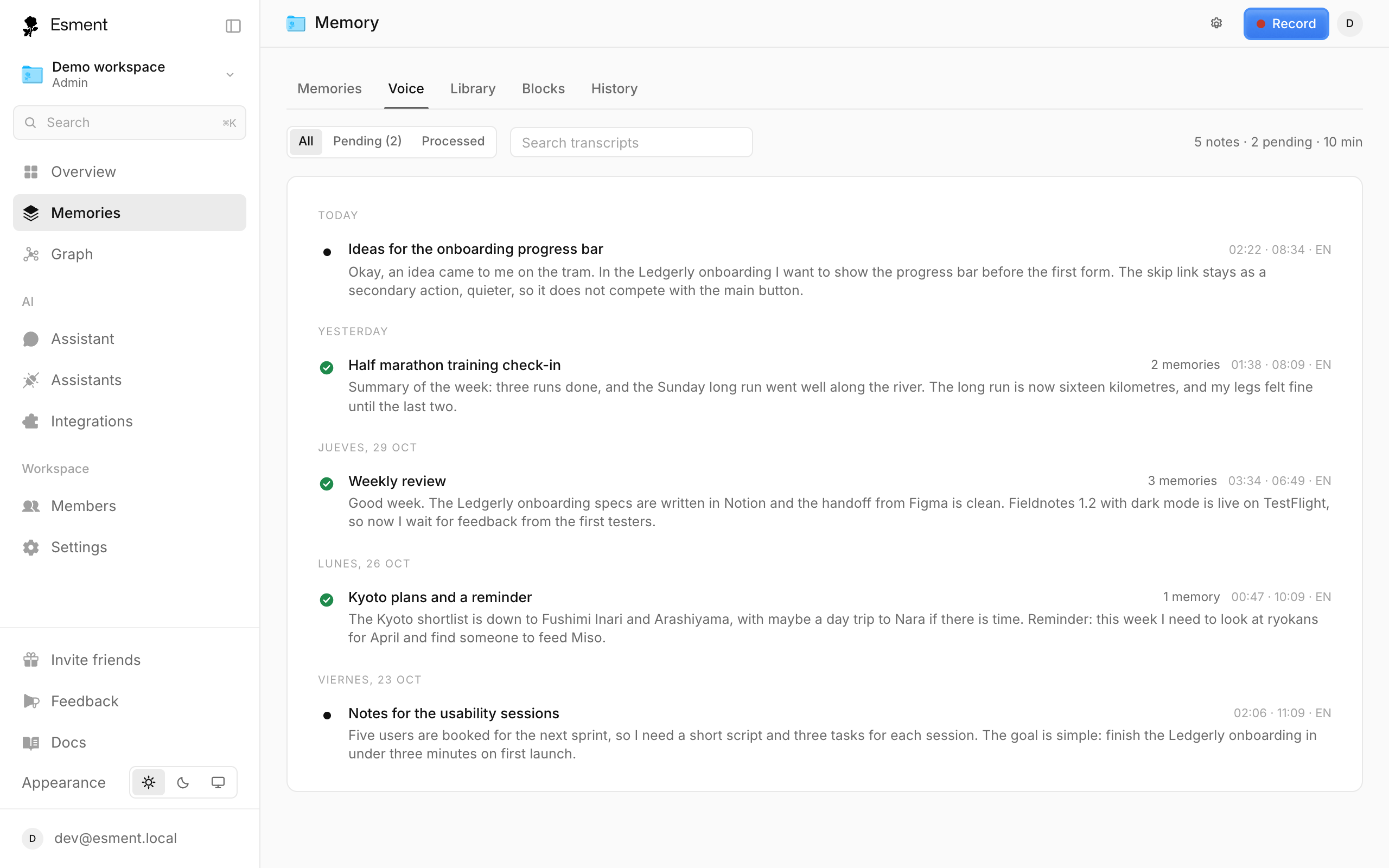
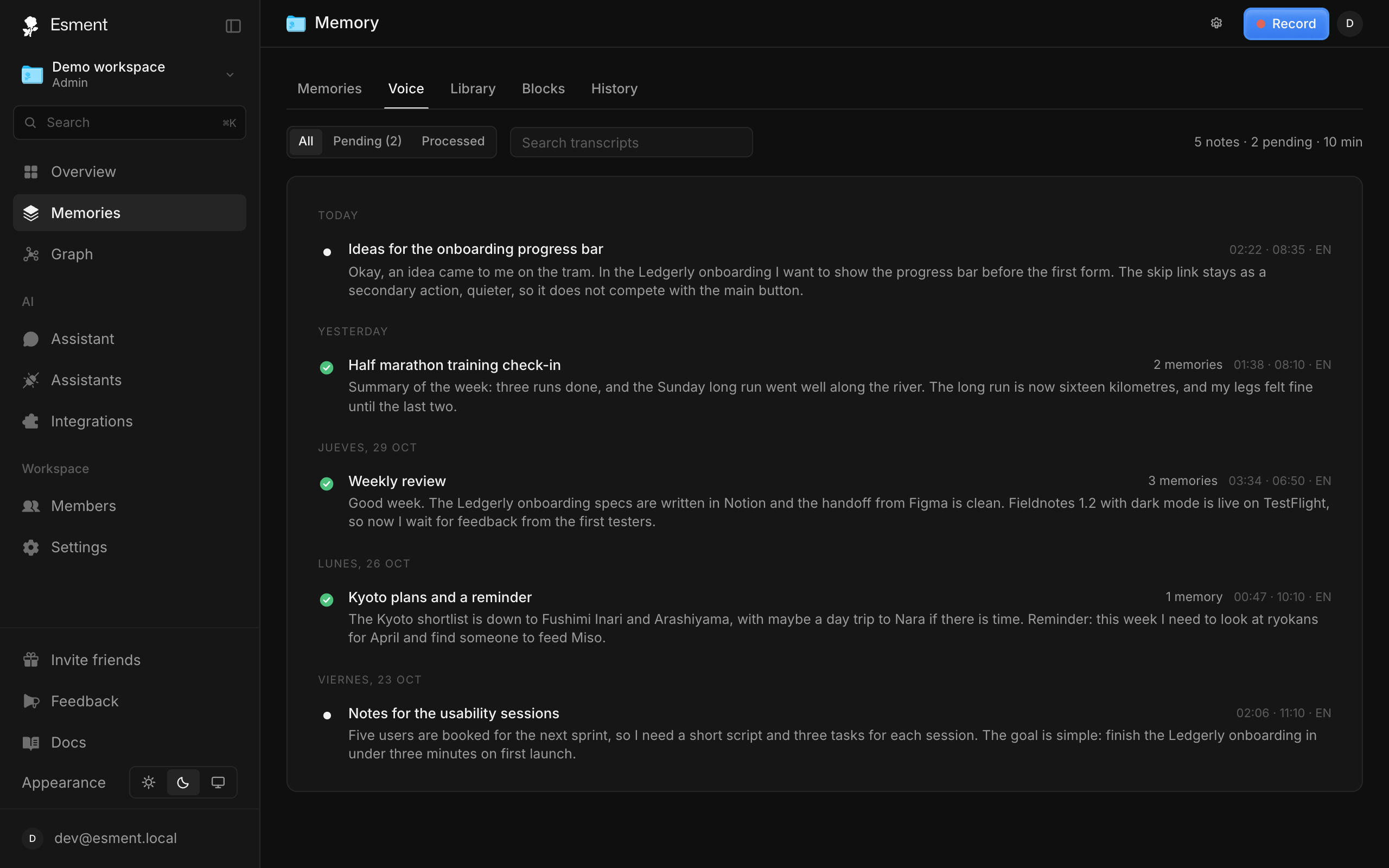
- 1Press ⌥V from anywhere, or open Memories → Voice and click Record.
- 2Optionally type a Title and choose the Language.
- 3Click Start and speak.
- 4Click Save when you are done, or Discard to throw it away.
On the web, a recording stops by itself at 60 minutes, with a warning a few minutes before.
Transcription on your device
The transcript is written on your own device, not by an AI service. On a Mac, a speech model called Whisper runs on the computer. In a browser, it runs on your own graphics card. The audio is never sent anywhere to be transcribed.
While it works, the note shows Transcribing. If something goes wrong, the note says so, and on the Mac you can try again.
Process with your assistant
A transcript is not a memory yet. Esment does not turn everything you say into memories: thinking aloud and microphone tests stay in the note. Your own assistant reads the note and decides what is worth keeping, writes it as clear, self-contained facts and links each one to the moment you said it.
- 1Open a note and click Process with assistant.
- 2Choose Open in Claude or Open in ChatGPT. The instruction is already written for you. Or choose Copy instruction to paste it anywhere.
- 3Your assistant reads the note through Esment and saves a memory for each idea worth keeping.
Or simply ask any connected assistant:
Process my voice notes.
A note becomes Processed once the first memory is saved from it. A note with nothing worth keeping stays Pending for you to review. Filter the list by All, Pending or Processed. From a memory you can open the note and play the exact second where it was said.
Your words
Speech recognition often stumbles on names, brands and jargon. Add them to Your words and every new transcript spells them the way you wrote them, on every device.
- 1In Memories → Voice, click Your words.
- 2Type a word or name, such as “Laura Vidal”, and click Add.
You can also fix a single line of any transcript by clicking on it, just like the title. The audio stays as recorded, and the corrected text is what your assistant reads.
Languages
Choose the language before you record, or leave it on Detect. Detection listens to the whole note, so a book title said in English does not turn a Spanish note into English.
- English
- Spanish
- French
- German
- Portuguese
- Italian
- Catalan
Models in the browser
On the web you can choose how your browser transcribes. Open the gear button (Transcription settings) and pick a model.
- Accurate: Whisper large-v3-turbo on your graphics card. Close to word for word. One-time download of about 567 MB. It needs WebGPU, a browser feature for using the graphics card.
- Light: a smaller Whisper model, about 80 MB. Faster, but with more wrong words.
- Auto: Esment picks one for your device and suggests switching if it turns out slow or has room to spare.
The model downloads once and stays in your browser. The settings dialog can also remove the downloaded models. If your browser does not offer WebGPU, only the Light model is available.
Plans & storage
On the Mac there is no limit: notes and audio stay on your computer. On the web, voice notes depend on your plan.
- Free and Starter: not included. The Voice tab shows a lock.
- Founding and Plus: included. 1,000 transcripts and 500 MB of audio (about 45 hours) kept in the cloud.
- Pro: included. 10,000 transcripts and 3 GB of audio (about 275 hours).
- Teams: included. Unlimited transcripts and 10 GB of audio per workspace.
- Enterprise: included. Unlimited transcripts and custom audio storage.
Running out of audio space? On the web, click Free up space to delete the audio of notes you have already processed. Their transcripts and memories stay. If you change plan, nothing is deleted: you can still read, export and remove the notes you have.