

Plans & billing
What each plan unlocks, how to activate the Mac app, and how to manage billing, devices and plan changes.
What a license is
Your plan belongs to your Esment account. When you have a paid plan, the account gets a license: the key that switches the Mac app on. You activate it once on each Mac, and the app keeps itself valid in the background.
The web version does not need you to activate anything. Signing in is enough, and your plan sets its limits automatically.
Choosing a plan
The plans are Free, Starter, Plus, Pro and Teams, plus Enterprise for companies that run Esment on their own servers. Founding was an early-supporter plan from the beta. Free is a web account with no paid plan. Every paid plan includes the Mac app and the web version.
What each plan unlocks
Every plan lets you connect assistants, save, search, pin and forget memories, and export everything. These are the parts that change with the plan.
Memories per workspace
- Free: a small allowance, enough to try Esment.
- Founding: 10,000. Starter: 5,000. Plus: 50,000. Pro: 200,000.
- Teams and Enterprise: unlimited (fair use).
Your own limits are always shown in Settings → Plan & billing, and the same limit applies separately to the Mac app and to each web workspace.
Features
- Voice notes: Founding, Plus and higher.
- Memory Blocks (always-on notes): Pro and higher.
- Workspaces with several people, Integrations and the model gateway: Teams and Enterprise.
- Observational memory (saving from a stream of activity): Enterprise.
- Joining a workspace someone else invites you to: Plus and higher.
How workspaces, seats and roles work is covered in Workspaces & members.
Activating the app
Activate once per Mac. You will need your license id: sign in on the web, open Settings → Plan & billing and click Copy license ID on your license.
- 1During the first-launch wizard, paste the id in the LICENSE ID step and click Activate. See Install on Mac.
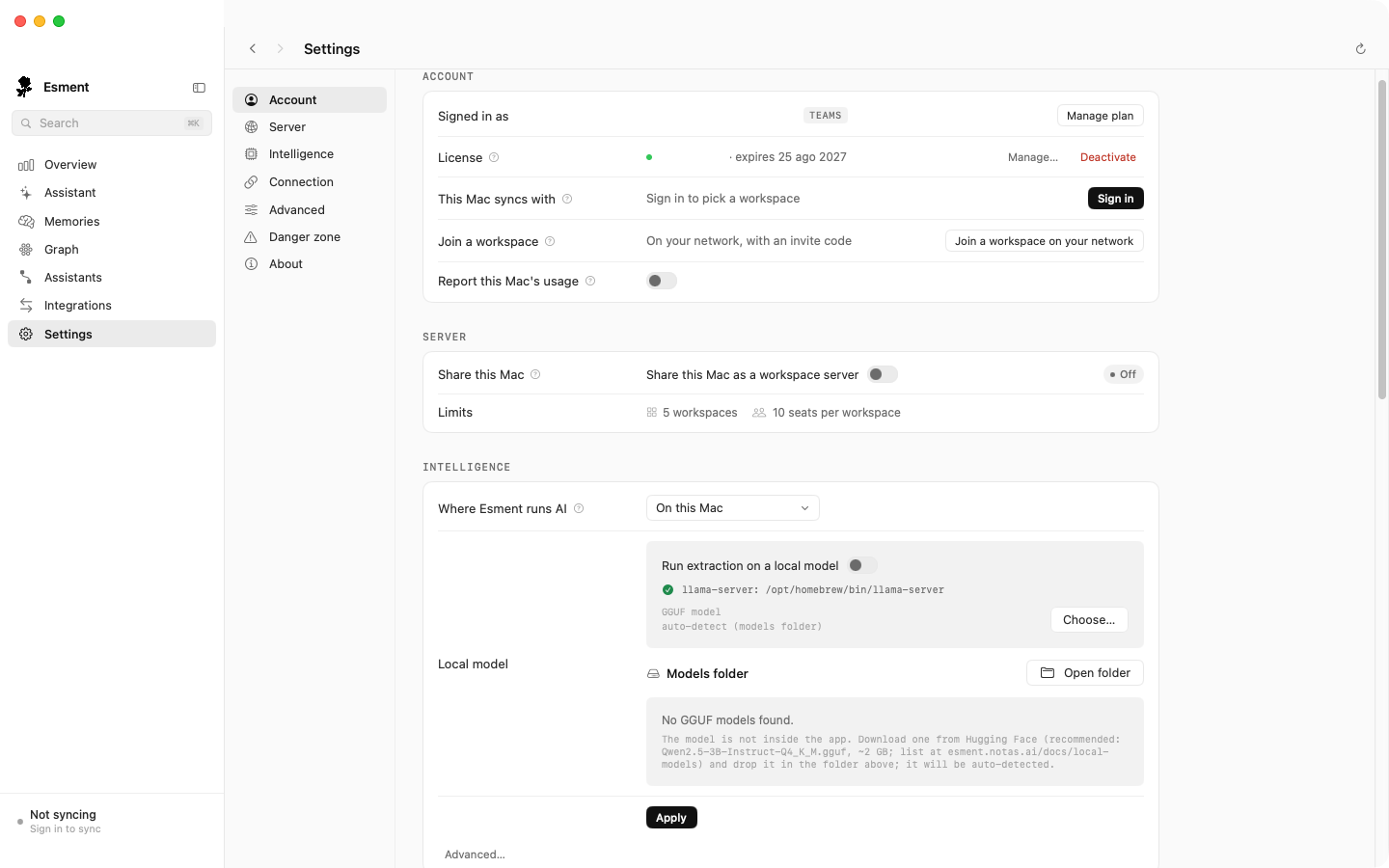
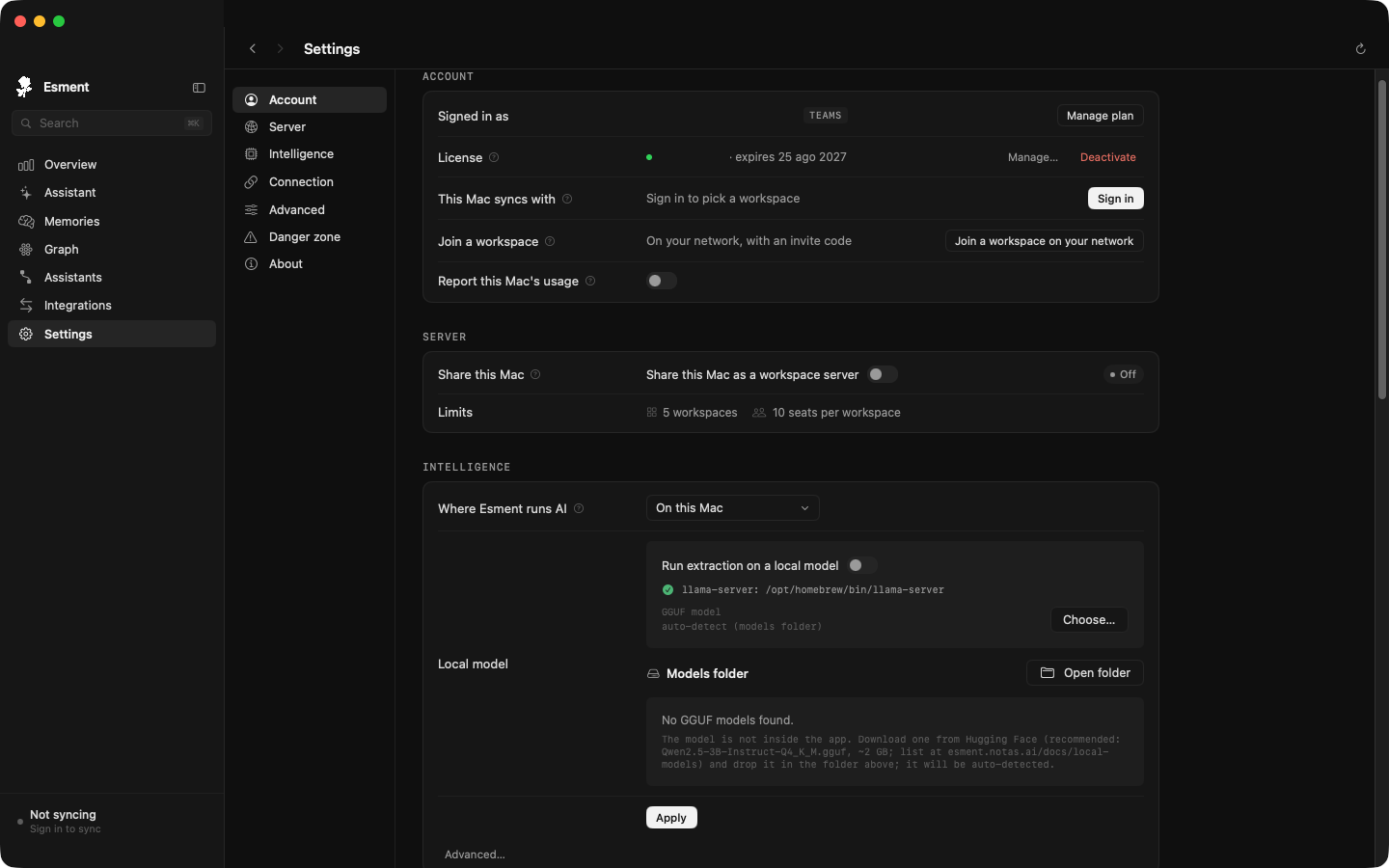
- 2Later, choose Activate license… in the menu bar, or open Settings → Account and click Manage… next to License.
- 3Paste the id and click Activate. The license line turns green when it is active.
Your account page
Everything about your account lives in Settings on the web, in five tabs: Account, Plan & billing, Security, Privacy and Workspace. The old account page now leads here.
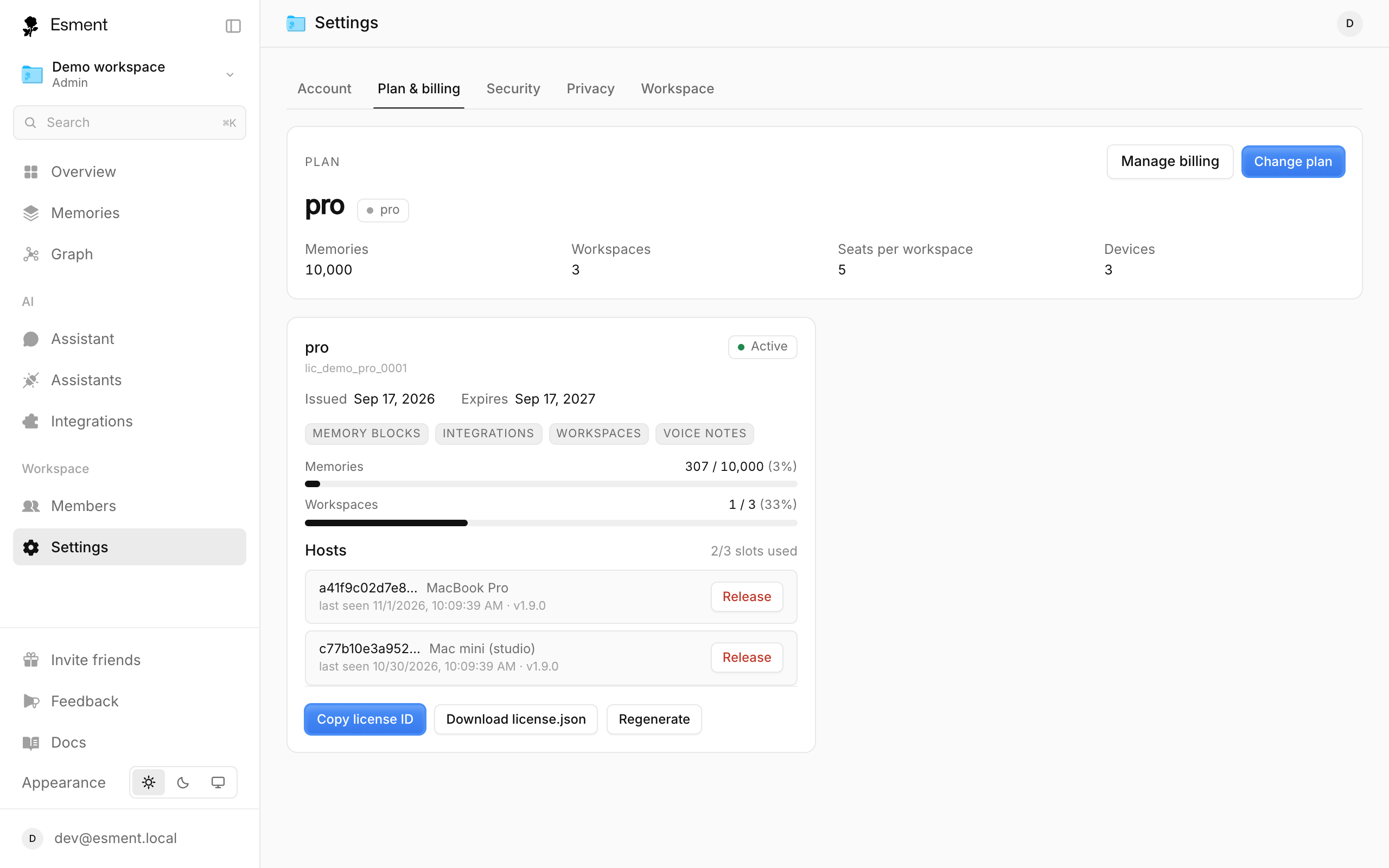
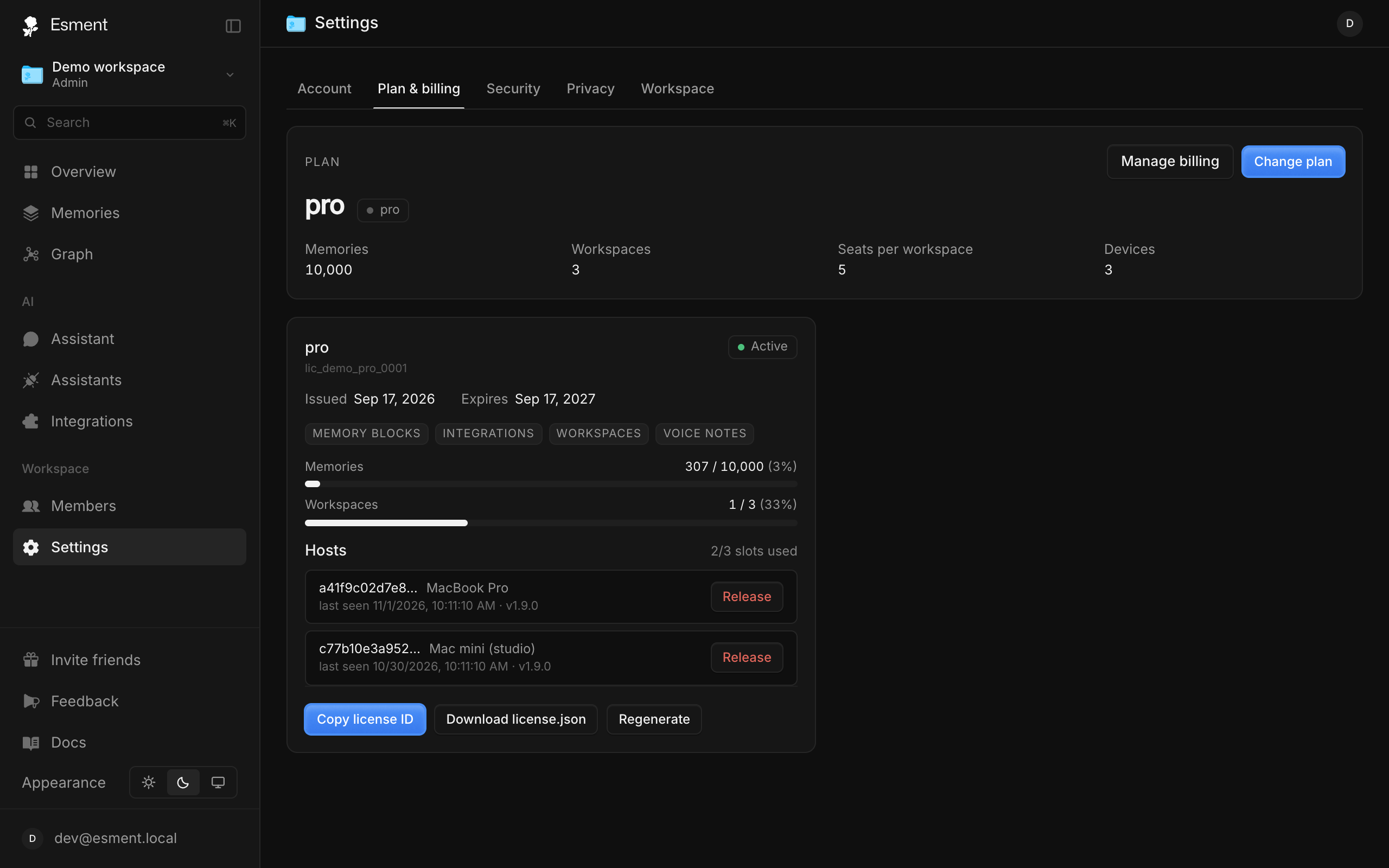
The Plan & billing tab shows:
- Your plan and its limits: Memories, Workspaces, Seats per workspace and Devices.
- Each license, with its status (Active, Expired or Revoked), issue and expiry dates and how much you are using.
- Copy license ID and Download license.json, for a Mac that cannot reach the internet.
Billing & devices
Payment, invoices and changing plan
Click Manage billing to open the secure billing page, where you can update your card, see invoices and cancel. To switch plan, click Change plan (or Upgrade on Free), which opens the pricing page.
Devices
Each license lists its Hosts, the Macs where it is active, with how many slots are used. If you reach the limit, click Release next to a Mac you no longer use. On the Mac itself, Settings → Account → Deactivate frees it too.
What happens to your memories when you change plan
- Nothing is deleted. Lowering your plan never removes memories you have already saved.
- If you are over the new limit, you can still read, search and delete, but new memories are not saved until you are under it. A banner on the web dashboard tells you when you are near or at the limit.
- Features the new plan does not include, such as voice notes, stay readable but you cannot add more.
- If a license expires, the Mac app asks you to activate a current one. Your memories stay on your Mac.