

Workspaces & members
Share a memory with other people: what a workspace is, how to invite people, who can do what and how to join one.
What a workspace is
A workspace is a separate memory with its own memories, history, API keys and people. Every account has one default workspace, which is your own memory. A member is a person who belongs to a workspace, and each member takes up one seat, the owner included.
The workspace you are looking at is shown at the top of the web sidebar. Click it to switch between the workspaces you own or have joined.
- Free, Founding and Starter: one workspace, one seat, and you cannot join others.
- Plus and Pro: one workspace of your own, one seat, and you can join workspaces you are invited to.
- Teams: create up to 5 workspaces with 10 seats each. Enterprise: unlimited.
Only Teams and Enterprise can create workspaces. Your plan page, Settings → Plan & billing, shows your own limits. Plans & billing has the rest.
Invite people
You must be an admin of the workspace, and have a free seat.
- 1On the web, open Members in the sidebar and pick the workspace in the switcher.
- 2Under Invite a member, enter the person’s Email and choose a Role.
- 3Click Send invitation. They get an email and join by opening the link and signing in.
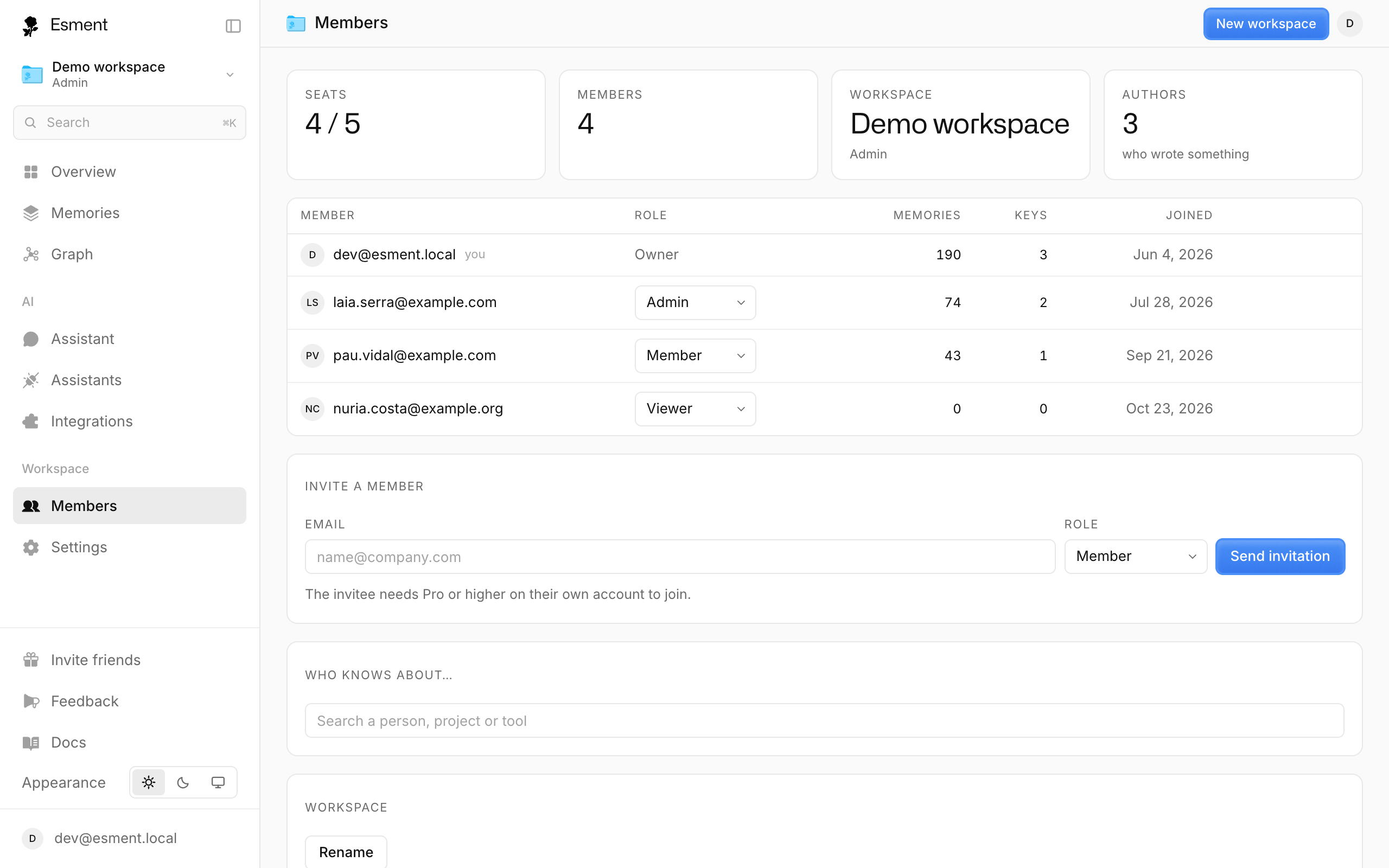
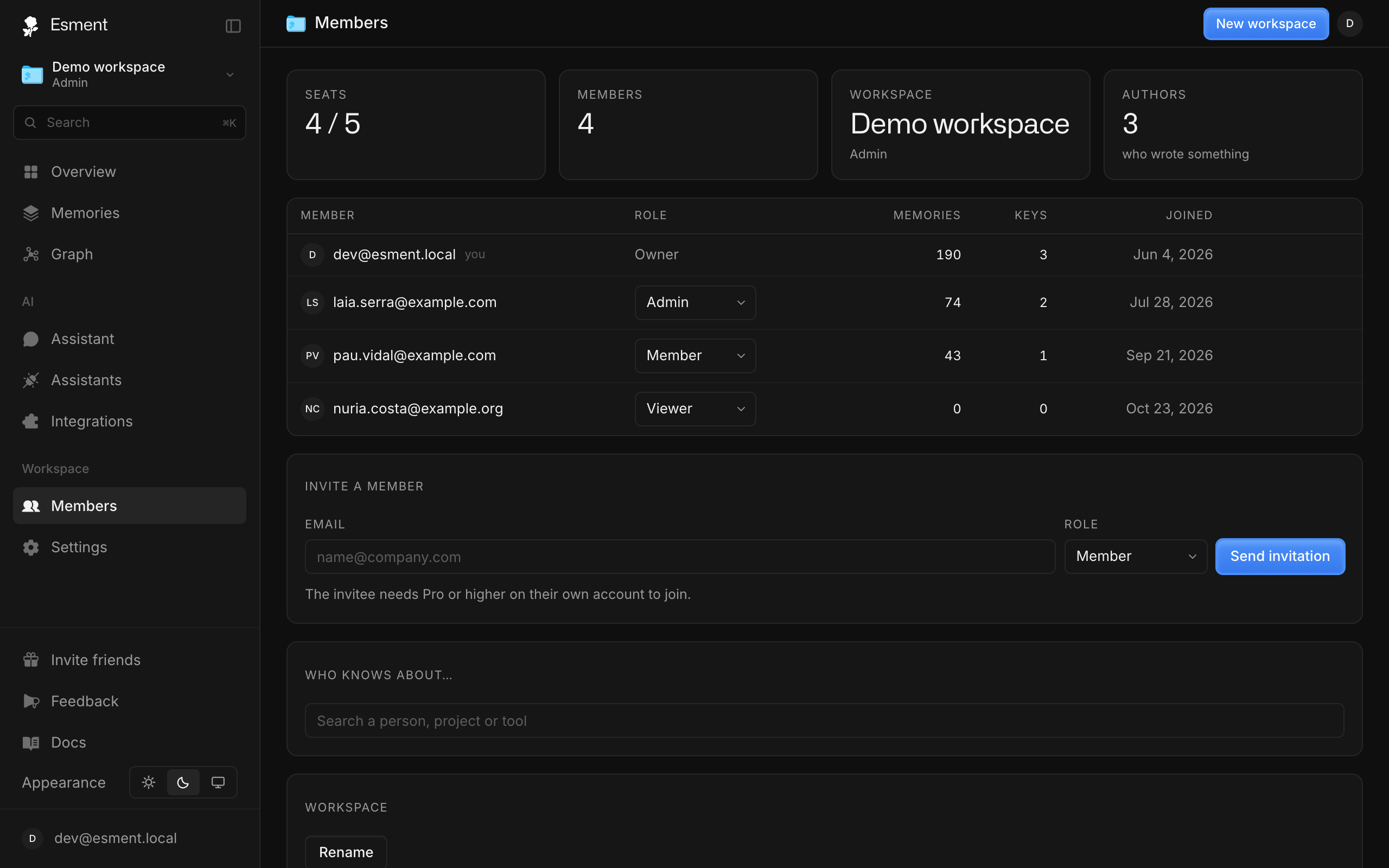
To create a new workspace on a Teams or Enterprise plan, use the workspace switcher. If every seat is taken, the form says Every seat is taken; a larger plan adds more. The owner can also Rename or delete a workspace from Members, but not the default one.
Roles & seats
- Owner: the person who created the workspace. Can do everything, including rename and delete it.
- Admin: invites and removes people, changes roles and manages the workspace’s API keys.
- Member: reads and writes memories.
- Viewer: reads only.
The Members page shows how many seats are in use and a table with each person’s role, how many memories they added and when they joined. Each memory records who saved it, so you can see who knows about a topic. That is for clarity, not for hiding anything: everyone in a workspace can read the same memories.
A member does not pay for a seat. It is part of the workspace owner’s plan, so the owner’s plan sets how many people fit.
Join a workspace
Joining needs your own plan to be Plus or higher. Free, Founding and Starter can receive an invitation but cannot accept it.
- 1A teammate who shares their Mac gives you an invite code.
- 2Open Settings → Account and click Join a workspace on your network.
- 3Paste the code (it starts with esment-invite:) and click Join. This Mac keeps its own memory and syncs with the workspace, both ways.
- 4To stop, click Leave next to the workspace name.
API keys
An API key lets your own code, a script or a tool read and write a workspace without signing in. Admins manage them in Settings → Workspace, under API keys.
- 1Click New key and give it a Name, such as “My script”.
- 2Click Create and copy the key. It is shown only once.
- 3To remove a key, hover over it in the list and click Revoke.
What a key can do
A key gets the same permission as the person who creates it: an admin’s key is admin, a member’s is read write, a viewer’s is read only. The list shows each key’s permission and when it was last used. Treat keys like passwords.