

Esment Cloud
Esment Cloud is a hosted version of your memory. Instead of living on your Mac, it lives on the web — so there’s nothing to install, and it works from any device or browser. It’s the simpler, lighter way to use Esment, and it’s included with your plan.
It shares all the same ideas as the Mac app — memories, blocks, a profile — so this guide focuses on what’s specific to the cloud and links to the main guide for the concepts they share.
App or cloud?
Both give your assistants a memory. The difference is where it lives and how much it can do.
- Choose the cloud if you want zero setup, and your memory to follow you across devices and browsers — ideal for web assistants like ChatGPT and Perplexity.
- Choose the app if you want everything to stay on your own Mac, and the full toolbox including the built-in assistant.
- You can use both. They’re separate stores, and you can export from one and carry it to the other.
Want the private, on-your-Mac experience as well? Everything you need is in the install guide.
Sign in
- 1Go to esment.notas.ai/app and sign in with your Esment account.
- 2That’s it — your hosted memory is ready. New accounts start empty and fill up as you use it.
Your cloud memory uses the same account as your licenses and billing. No separate sign-up needed.
Connect an assistant
This is the whole point of the cloud: one link that any assistant can use. Open the Connect page in your dashboard to find it.
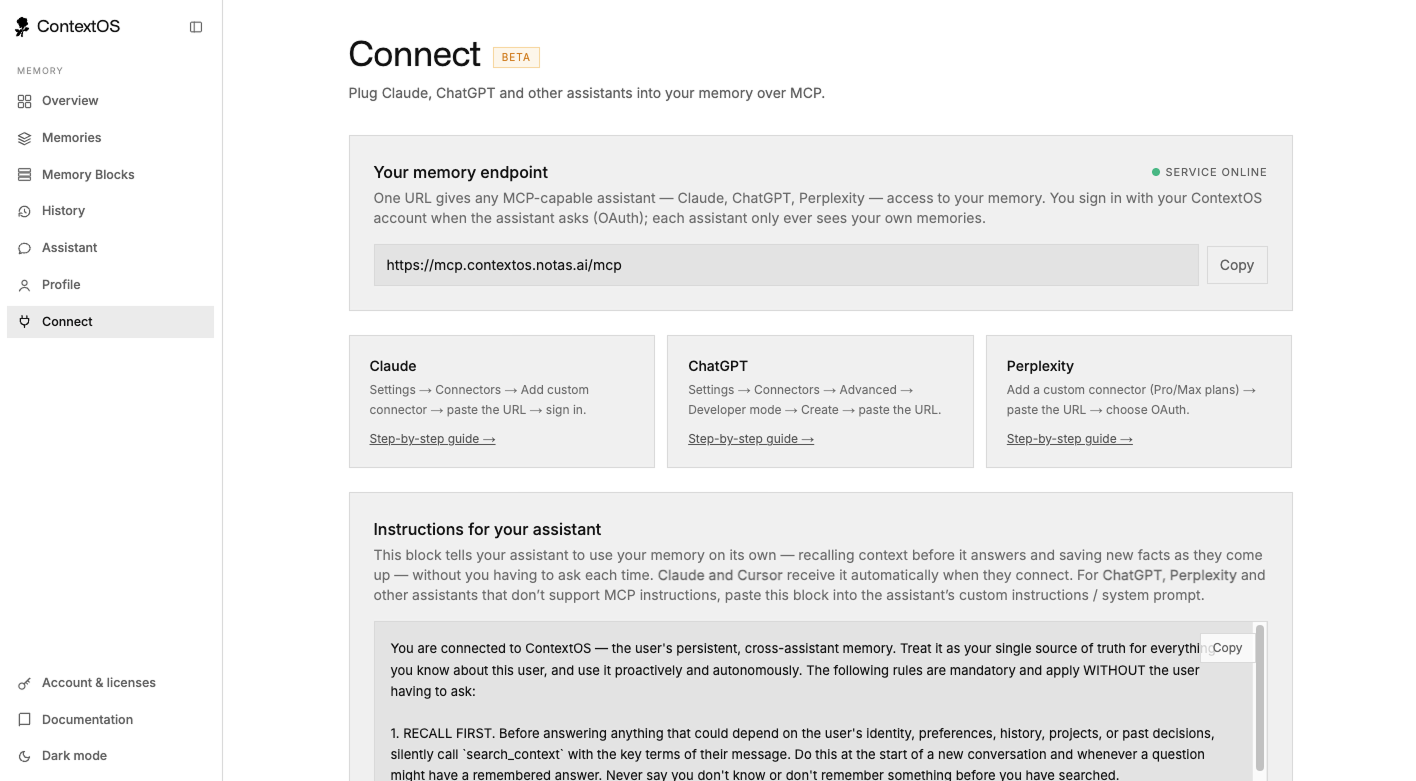
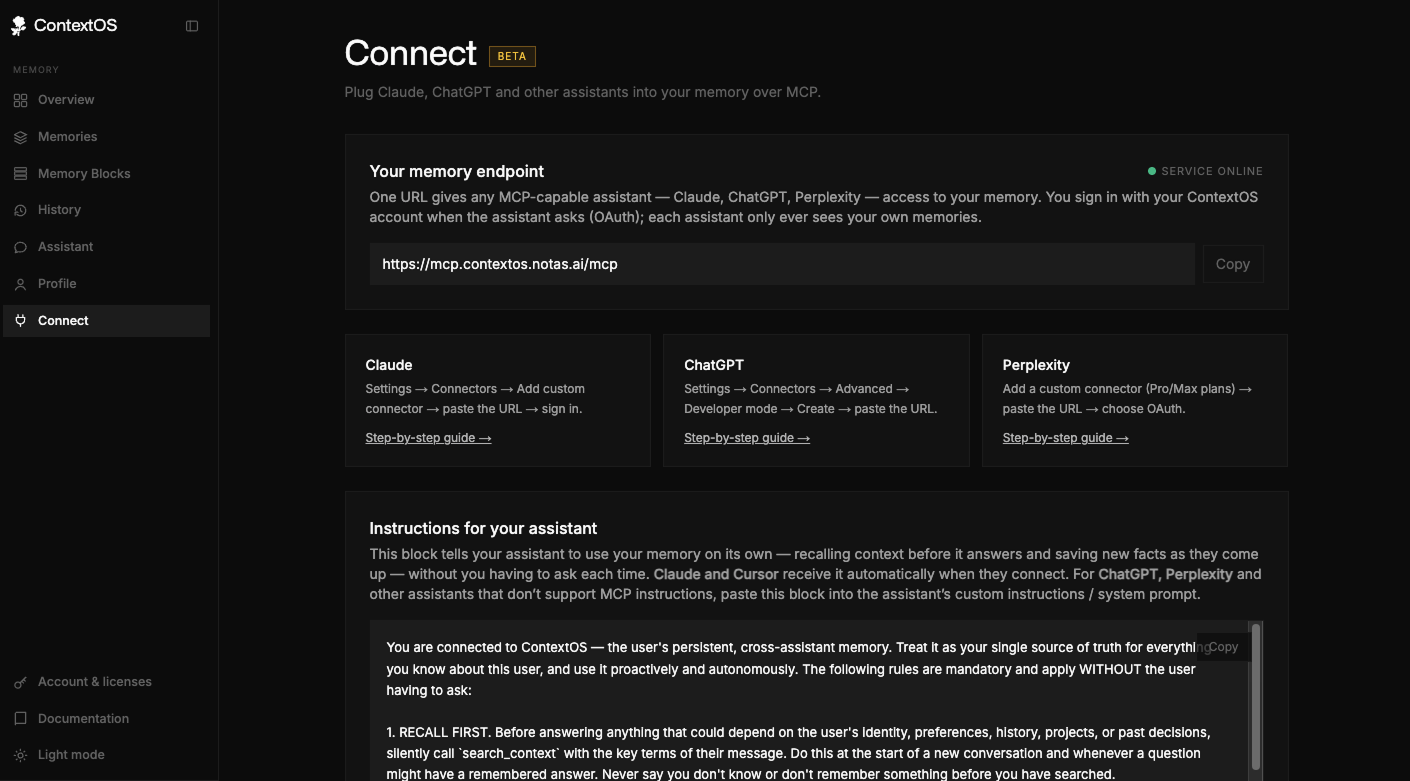
One link, then sign in
The Connect page shows your personal memory endpoint — a single web address. Copy it, paste it into your assistant’s connector settings, and when the assistant asks, sign in with your Esment account. Each assistant only ever sees your own memory.
Where to paste it
- 1Claude: Settings → Connectors → Add custom connector → paste the link → sign in.
- 2ChatGPT: Settings → Connectors → turn on developer mode → Create → paste the link.
- 3Perplexity (Pro or Max): Add a custom connector → paste the link → choose to sign in.
- 4Grok (paid plans): grok.com/connectors → New Connector → Custom → paste the link → API key. Full walkthrough in the Grok guide.
Because the cloud already lives on the web, web assistants reach it directly — there’s nothing to keep running on your computer.
Making it use your memory on its own
The Connect page also has a block of ready-made instructions that tells your assistant to recall context before answering and save new facts as they come up. Claude receives it automatically; for ChatGPT and Perplexity, copy the block and paste it into the assistant’s custom instructions once.
An access key, if a tool needs one
A few tools connect with a key instead of signing in. The Connect page can generate a personal key for those — it’s shown once, so copy it somewhere safe. Most people never need this.
Your memory dashboard
The cloud dashboard has the same familiar pages as the app — Overview, Memories, Memory Blocks, History, Assistant and Profile. Everything you can do with memories and blocks in the app, you can do here too.
Rather than repeat it here: how memories are captured, pinned and forgotten, and what Memory Blocks are, is all covered in the main guide — and it applies exactly the same in the cloud.
One difference to note: the automatic Profile summary currently runs in the Mac app, so on the cloud that page may stay empty for now. Your memories are still captured and searchable as usual.
Export & plans
Your memory is portable
From the Overview page you can export everything at any time, in the same format the Mac app uses. Open the export locally and keep working fully offline — your memory is never locked in.
Plans & allowance
Cloud memory is included with your plan. It has its own allowance, separate from the Mac app — so using the cloud doesn’t eat into your local memory, and the other way around. You can see your usage on the Overview page and on your account page.
One plan covers both the app and the cloud. See the licenses guide for how plans and billing work.