

Integrations
Connect the tools your team already uses so they feed your memory, and send memory events to the places where people will see them.
Where to set them up
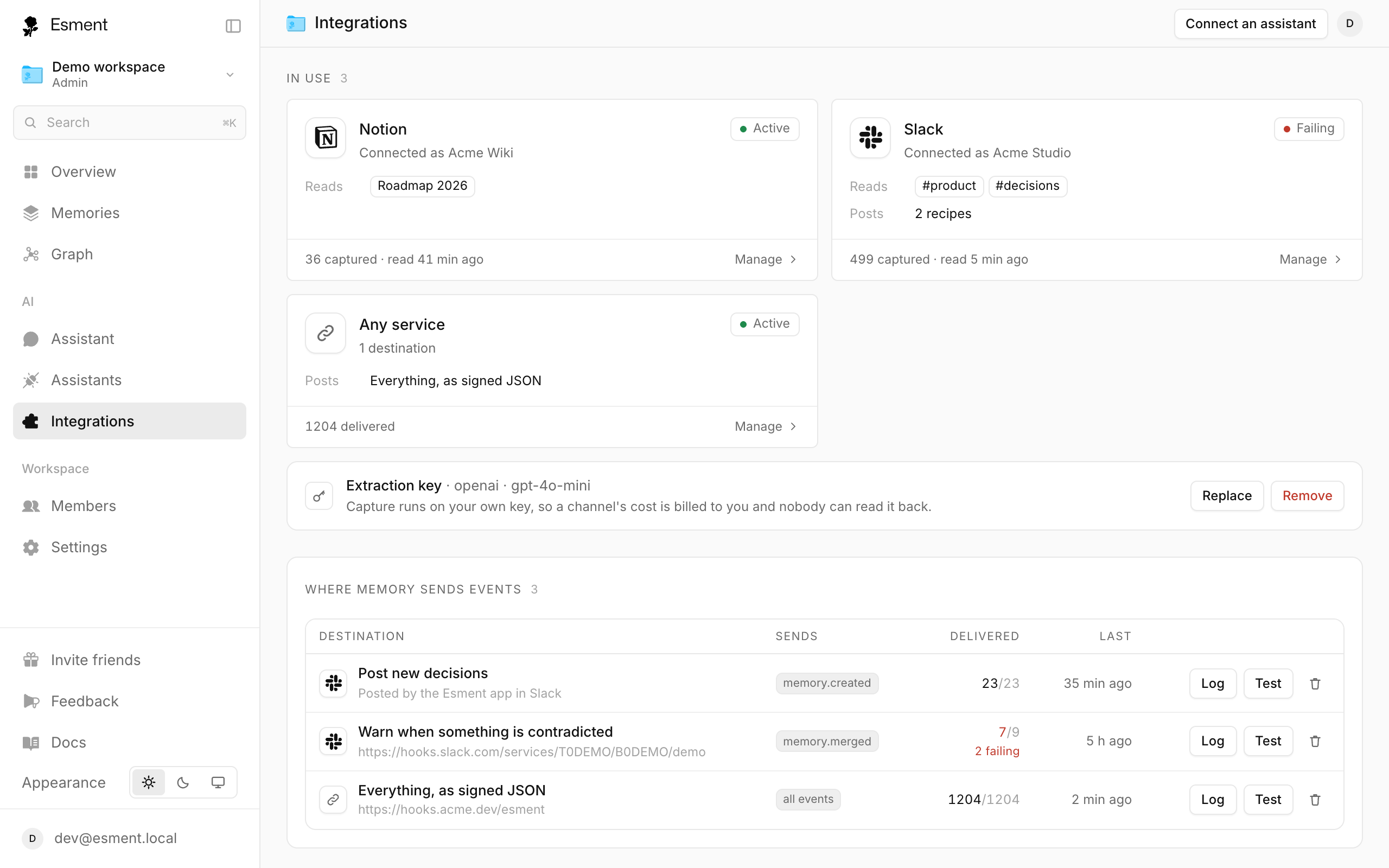
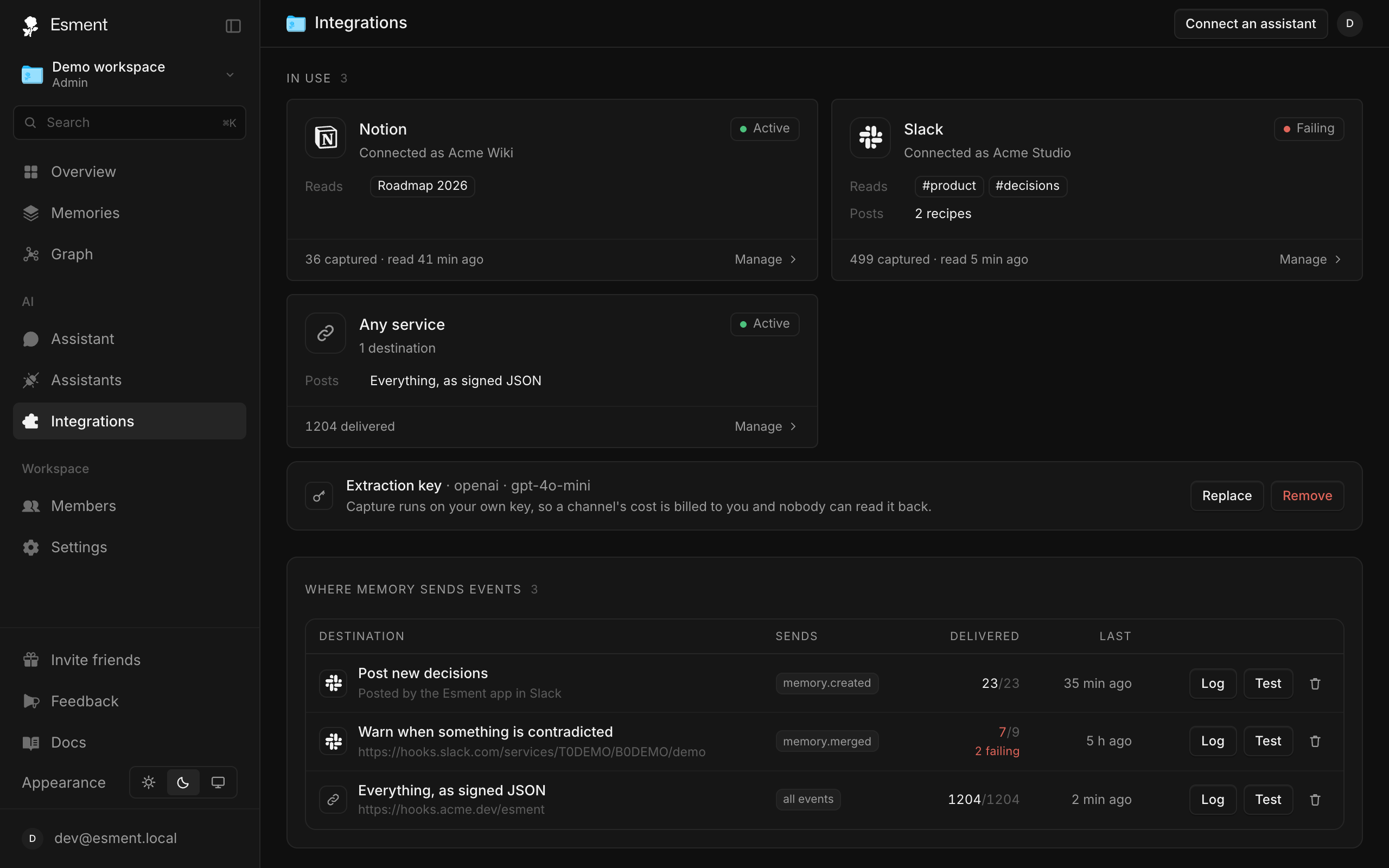
Everything lives on one page: Integrations in the web dashboard, or Integrations in the Mac app. Each tool is a card. Click a card to open its panel and connect it. Cards in use are listed first, then ones ready to connect, then ones marked Coming soon.
Integrations work in two directions. Some tools read into your memory (Slack, Notion). Others receive updates from your memory (Slack, Discord, your own service). Slack does both.
Slack
Save a message with two clicks, ask your memory by mentioning @Esment, let Esment learn from public channels you choose, and get new decisions posted to a channel.
Notion
Notion lets Esment read the pages and databases where your team writes things down. It only reads what you share with it on Notion’s own consent screen.
- 1On the Notion card, click Connect and approve it in Notion, choosing the pages to share.
- 2Back in Esment, click Choose what to read and pick a page or database (search for it, or paste its ID).
- 3To pause, click Stop next to it. Forget all also deletes every memory that came from it.
- 4To remove the link entirely, click Disconnect. Esment deletes its stored access token.
Notion is checked on a schedule, so it works on a Mac with no public web address too.
Webhooks & Discord
A webhook is a web address that receives a message whenever something happens. Esment can call one each time a memory is created, merged or forgotten. That lets you post to a chat channel or feed your own tools.
- Discord: posts to a channel through a webhook URL you create in Discord.
- Any service: a URL of your own, such as a CRM, Zapier, n8n or Make. It can send everything as signed JSON, or just new decisions as plain JSON.
- 1Open the Discord or Any service card and pick a recipe, then click Add.
- 2Paste your webhook URL into the field and click Activate.
- 3If you chose signed JSON, copy the signing secret now. It is shown only once.
Every destination is listed under Where memory sends events. Use Test to send a sample, Log to see each delivery and whether it arrived, and Remove to stop it. Slack channel updates are set up from the Slack card instead, with no URL to paste.
GitHub and more (coming soon)
GitHub (pull requests and issues), Linear, Jira & Confluence, Google Drive, Google Calendar and Teams & Outlook appear on the page as Coming soon. You can open them to see what each is waiting on, but there is nothing to connect yet.